

TL;DR: The LinkedIn Ad Library is a free, public page where you can look up any company and see the ads it ran over the past year, without logging in. Each ad comes with its creative, its copy, and who paid. Ads targeted at the EU also show the dates they ran, their impressions, and part of their targeting. Spend and results are never shown, but there are ways to tell which ads are working (Step 5).
Every ad a company runs on LinkedIn is public. LinkedIn has to keep them in a free library for a year, and anyone can look up any company in it, without an account.
Most people type a competitor's name, scroll through a few ads, and leave. They miss most of what the library can tell them.
LinkedIn hides spend and results, but it leaves enough clues to work out which ads are likely winners, how big a campaign is, and part of its targeting. Here is everything the library can show you, including a few tricks LinkedIn doesn't document, like finding the sponsored messages a competitor sends to people's inbox.
What the LinkedIn Ad Library shows and hides
The library shows what a competitor runs, and for many ads how long it has been running. It never shows how well an ad performed.
- The creative and the full ad copy, including the CTA
- The format (single image, video, document, Message Ad...)
- The advertiser, and who paid for the ad
- For ads targeted at the EU: the dates it ran, impressions per country, and part of the targeting
- Spend
- Results: clicks, leads, engagement
- Whether the ad is active or paused
- Dates, impressions, and targeting for ads that don't include the EU
It goes back one year. LinkedIn keeps each ad for one year after its last impression, and nothing that ran before June 1, 2023 is in there. New ads appear a day or two after they start running.
The one-year rule comes from the EU's Digital Services Act. It forces large platforms to keep a public archive of their ads for one year after the last impression, which is also why the library exists at all.
Which competitors to look up
Before you search, decide who to look up. Direct competitors are the obvious answer: the companies that sell what you sell.
But ad platforms sell impressions through an auction, so you also compete against every advertiser going after the same audience as you. Let's call them indirect competitors.
For example, if you sell to heads of HR, a recruiting tool, a payroll app, and an insurance company might all bid for the same person. They sell nothing like your product, but their ads sit next to yours in your buyer's feed and push your costs up.
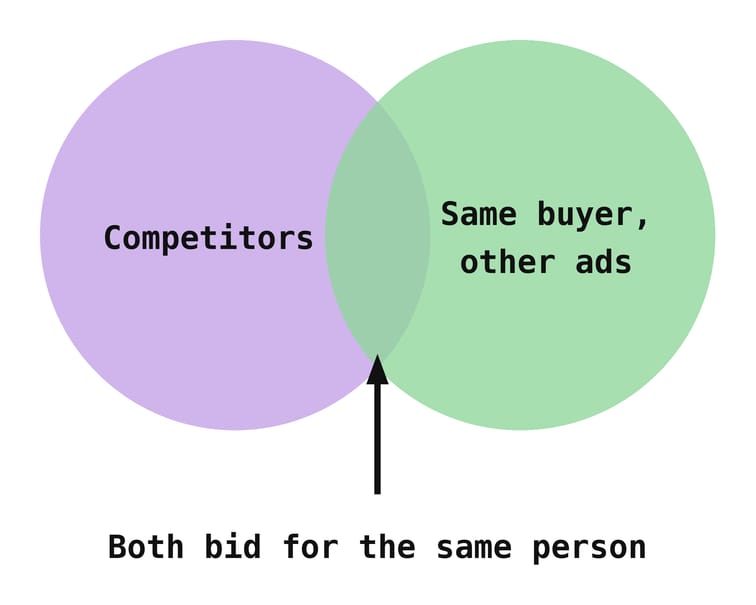
Indirect competitors show you what already gets your buyer's attention: the hooks, offers, and formats they keep paying for. You can reuse what works without looking like a copy of someone in your own market.
So make two lists before you start: your direct competitors, and a few indirect ones.
Step 1: Find a competitor's ads
You don't need a LinkedIn account or an ad account for any of the steps. Go to linkedin.com/ad-library, type the company name in the first field, and hit Search. You get every ad the company ran in the past year, newest first.
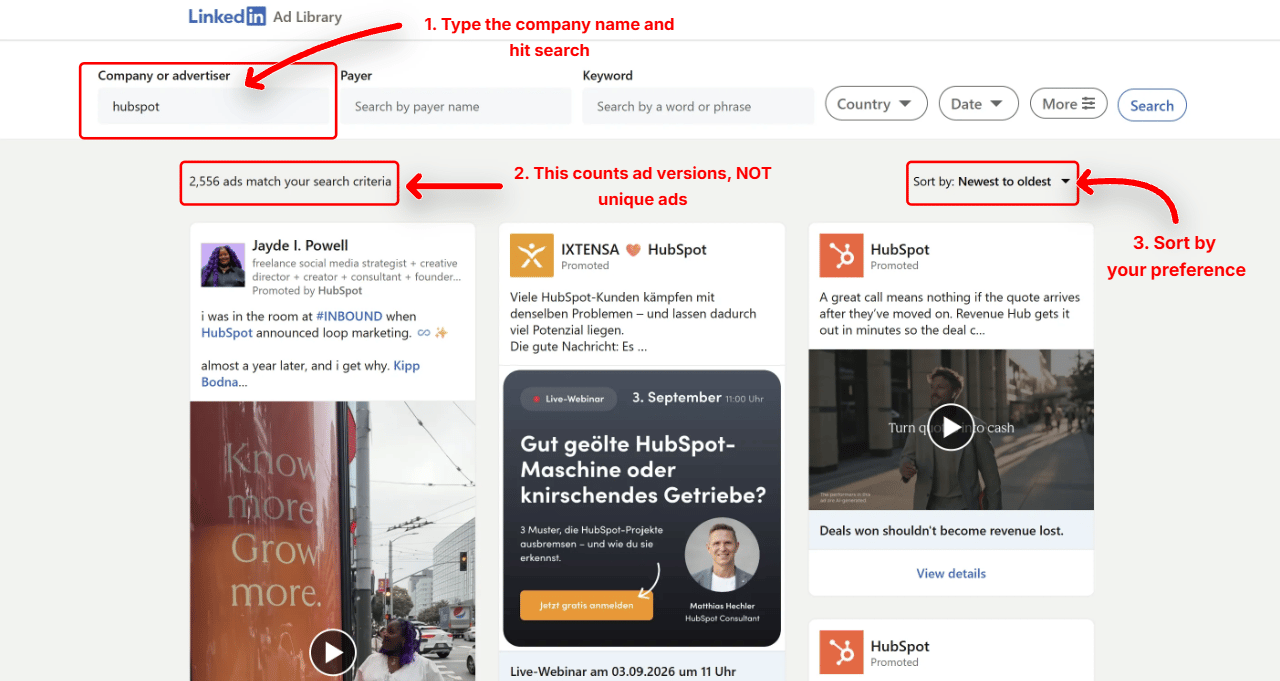
The line above the results says how many ads match, often in the thousands for a big advertiser. That number counts ads, not different creatives. The same creative is usually listed several times because it runs in several campaigns, so expect far fewer distinct ads than the count suggests.
Can't find their ads?
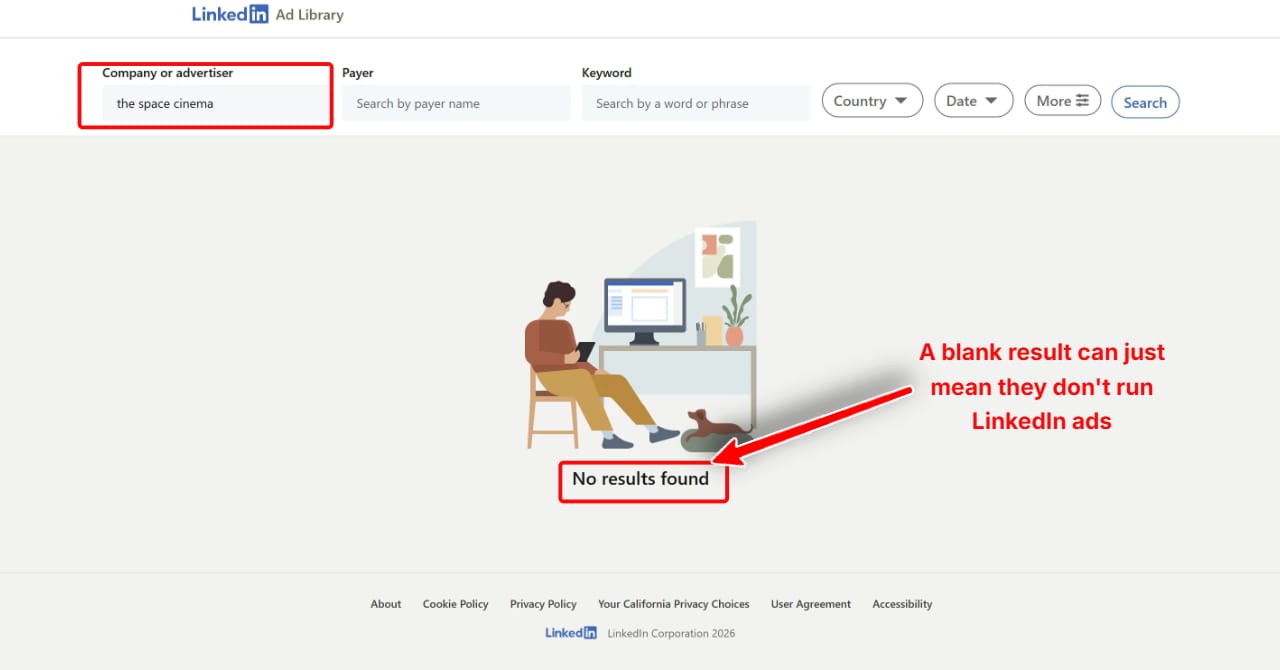
An empty result doesn't always mean the company doesn't advertise. Check these first:
- A leftover filter: a country or a date from your last search is still on
- The delay: an ad launched today can take a day or two to appear
- The name: the ads may run under a product brand, a parent company, or a regional Page
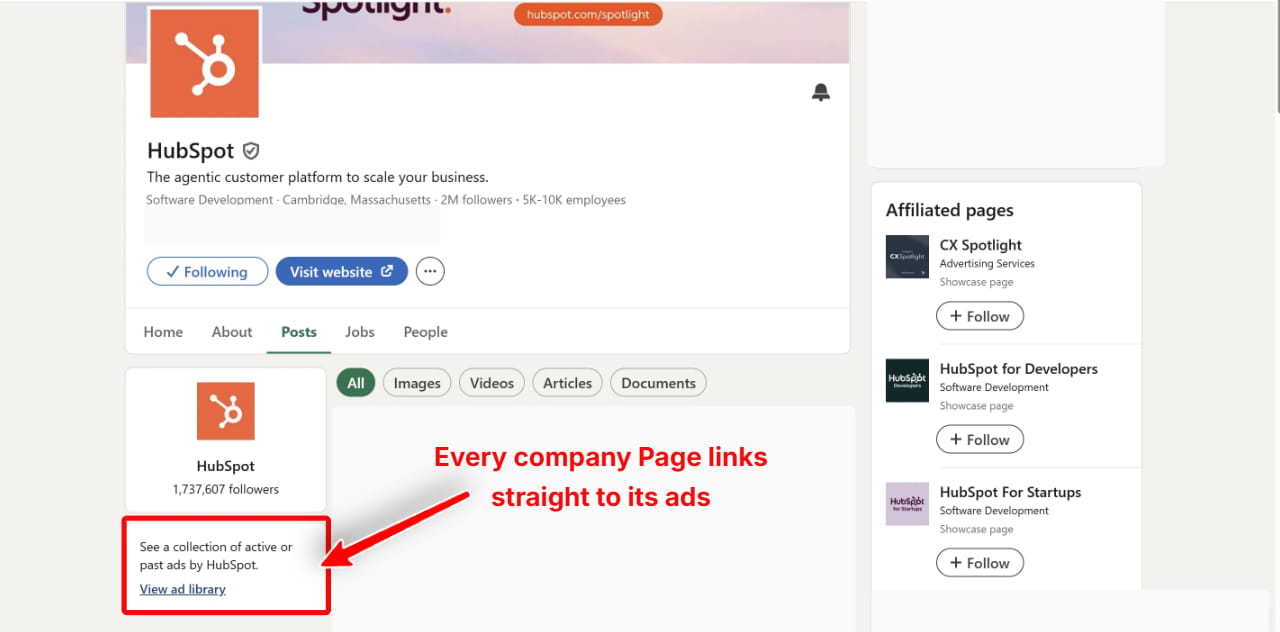
When the name is the problem, start from the company's LinkedIn Page instead. Open the Posts tab, and the left column has a "View ad library" link that opens the library with the right company already filled in.
If you've checked all that and still find nothing, they might not be running LinkedIn ads at all. B2B companies also advertise on Google and Meta, so look there before you cross them off (see "Other ways to see competitor ads" at the end).
Step 2: Search by keyword
You can search the library in three ways:
- Company or advertiser: the brand name
- Payer: the company that pays for the ads, often an agency or a parent company (more on this in Step 4)
- Keyword: any word or phrase
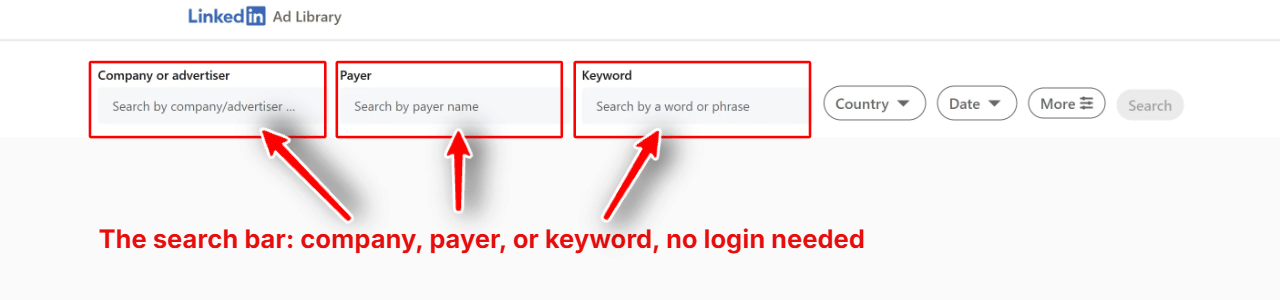
The first two only work when you already know who you're looking for. Keyword search finds advertisers you didn't know about, because it looks at the text of the ads, not the name of the company. Search "free trial" and you get ads that mention a free trial, whoever runs them.
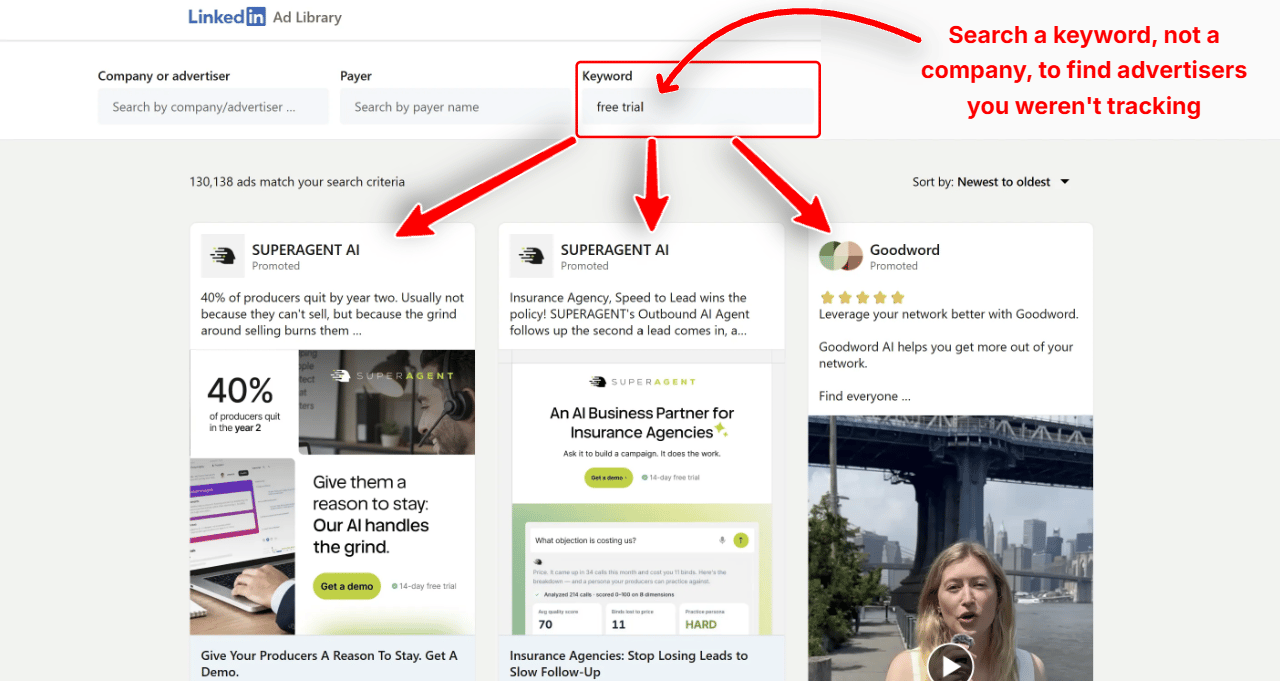
Some keywords worth searching:
- Your product category: "AI headshot generator", "payroll software"
- A type of offer: "free trial", "demo", "webinar"
- A competitor's name: to find the companies that mention them in their ads
- A job title: "head of HR", "CFO", to see who else is talking to your buyer
The match is loose. Results can contain only one of your words, and the word can sit anywhere: the ad copy, the headline, the CTA, or the job title of the person whose post is promoted. Open an ad and use Ctrl+F when you can't see why it matched.
Tip: filter Message Ads with %FIRSTNAME%
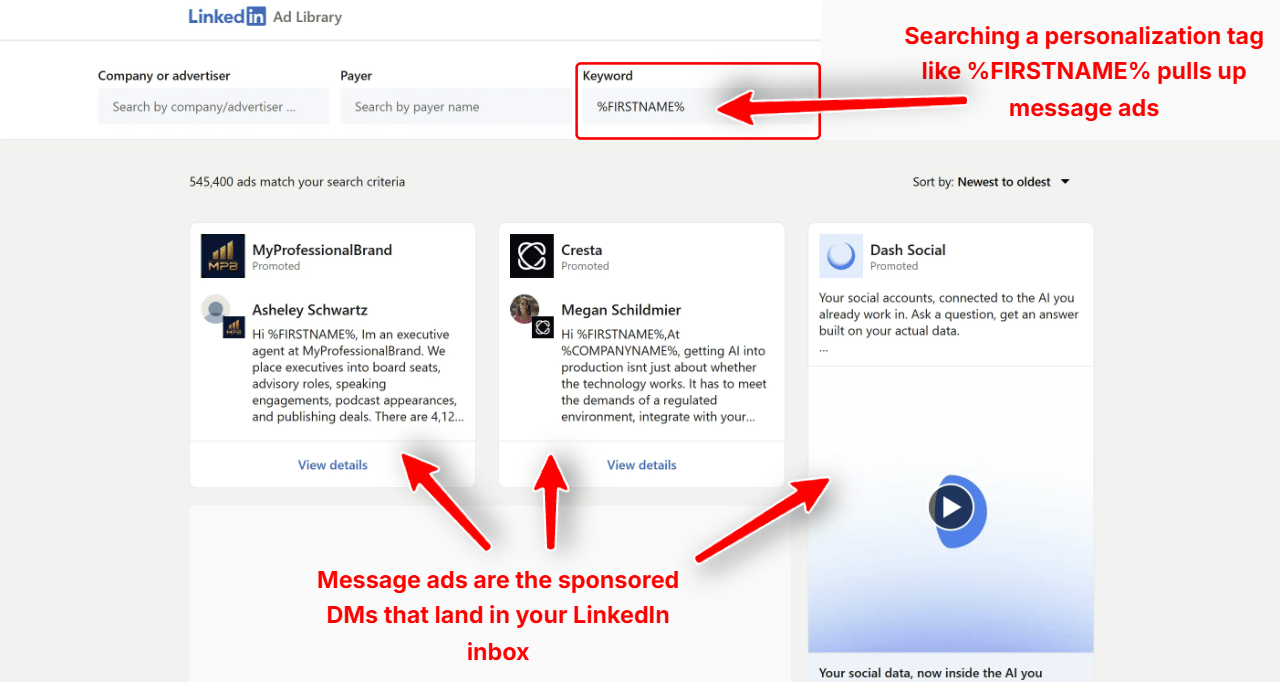
The library has no filter by ad format, but there's a workaround for Message Ads, the sponsored messages that land in your LinkedIn inbox.
To personalize them, advertisers write tags like %FIRSTNAME% or %COMPANYNAME% in the text, and LinkedIn replaces them with the person's real name or company when it sends the message.
The library shows the message as the advertiser wrote it, tags included. So searching %FIRSTNAME% as a keyword brings up Message Ads, with the full message. Add a company name to read one competitor's messages.
Step 3: Filter the results
A big advertiser returns thousands of ads, so narrow the list down before you start reading. The filters sit next to the search fields:
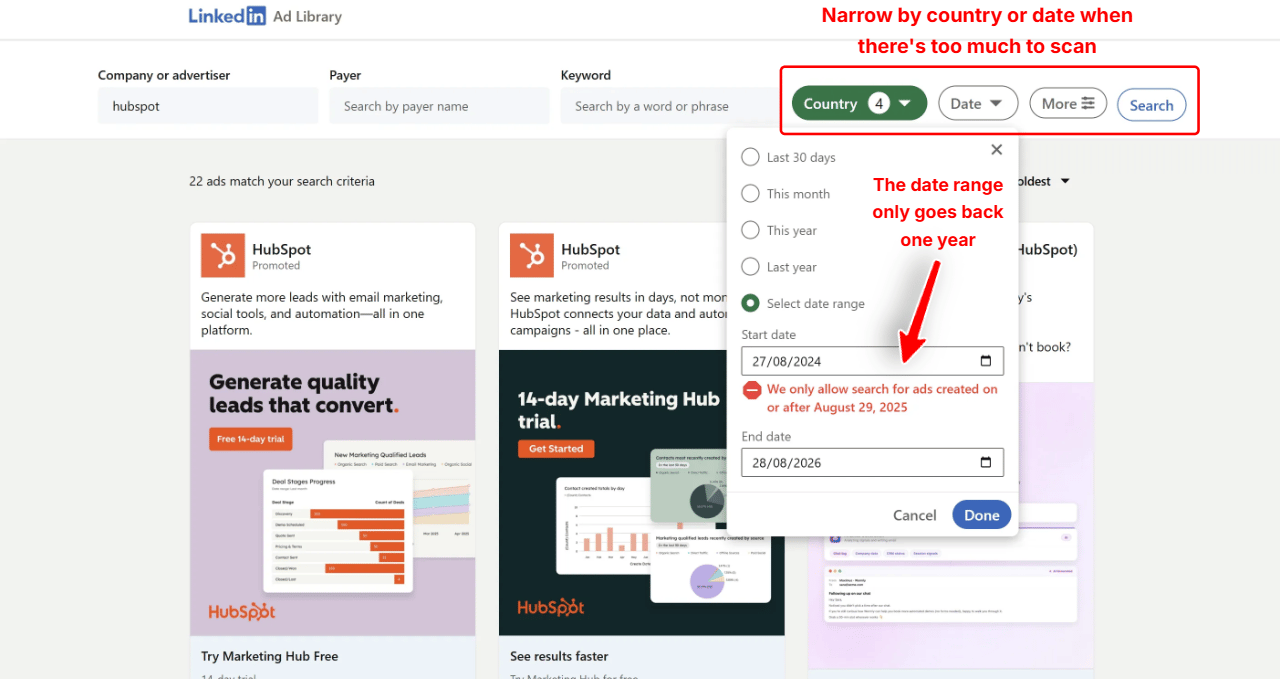
- Country: shows only the ads that ran in the countries you pick. Use it to see how a competitor talks to your market, since big advertisers change the offer and the language per country.
- Date: shows only the ads that ran in a period, within the past year. Use it to see what a competitor ran around a launch, an event, or the end of a quarter.
- Sort by: newest or oldest first. There's no other sort.
The "More" button opens two extra filters, the impression range and the targeting. Both only work on ads targeted at the EU, because those are the only ads that carry this data (see Step 4).
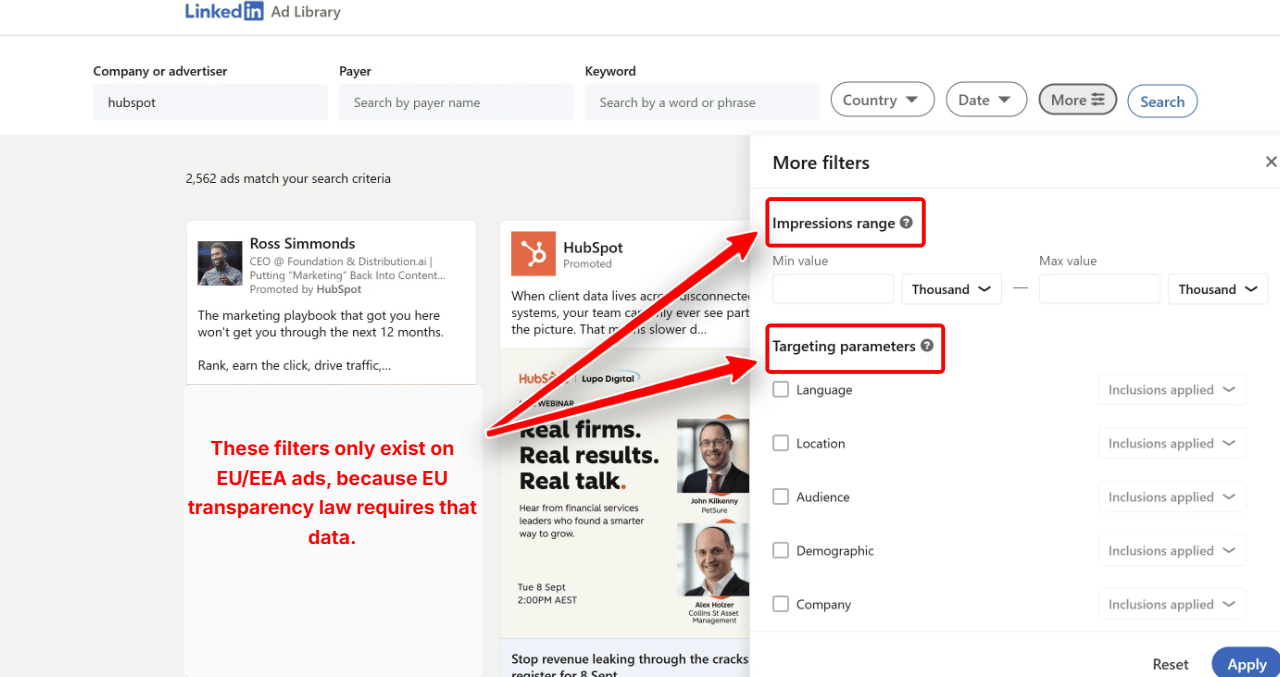
Set the impression filter to the highest ranges and you get the ads that reached the most people, which are usually the ones with the most budget behind them.
Step 4: What an ad's detail page shows
Click "View details" on an ad. The "About the ad" panel on the right has three fields, and a fourth one when the ad's targeting includes the EU:
- Format: single image, video, document, Message Ad...
- Advertiser: the brand
- Paid for by: the company that pays the bill. Often the brand itself, sometimes an agency
- Ran from... to... (EU-targeted ads only): the dates of the first and the last impression
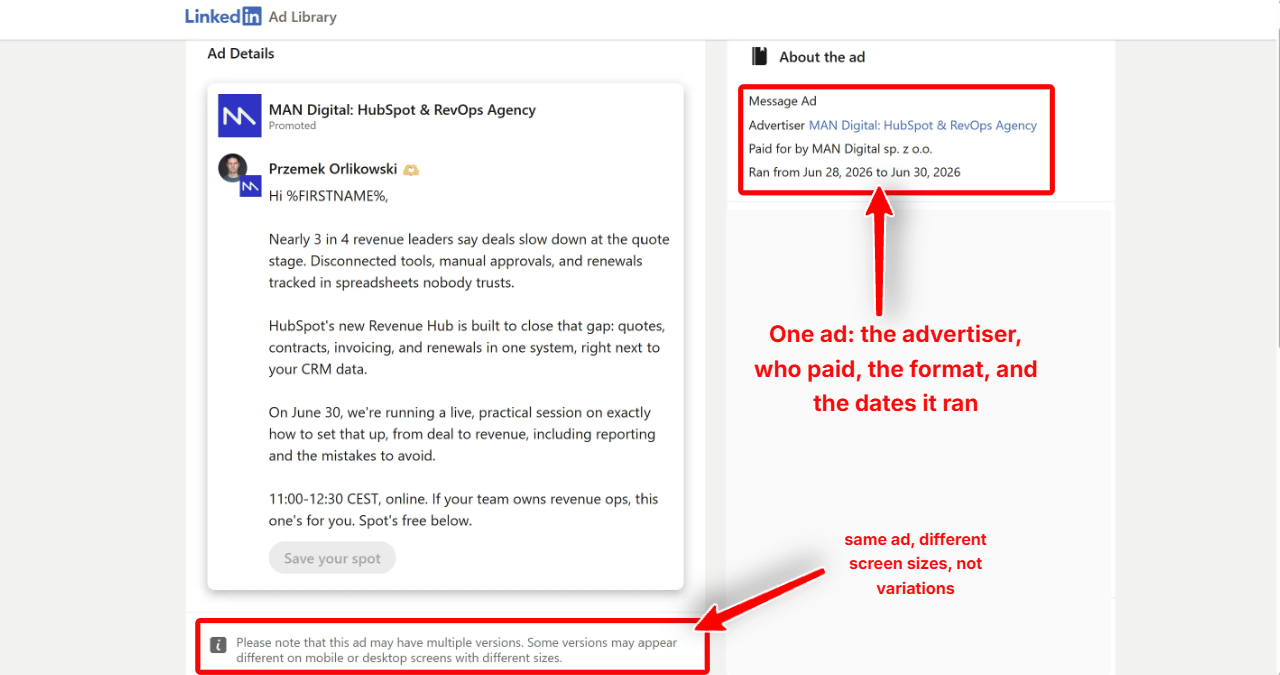
When an ad has dates, they also tell you if it's still running. LinkedIn has no "active" badge, but the end date is the day of the last impression. An ad that ends today or yesterday is most likely still live.
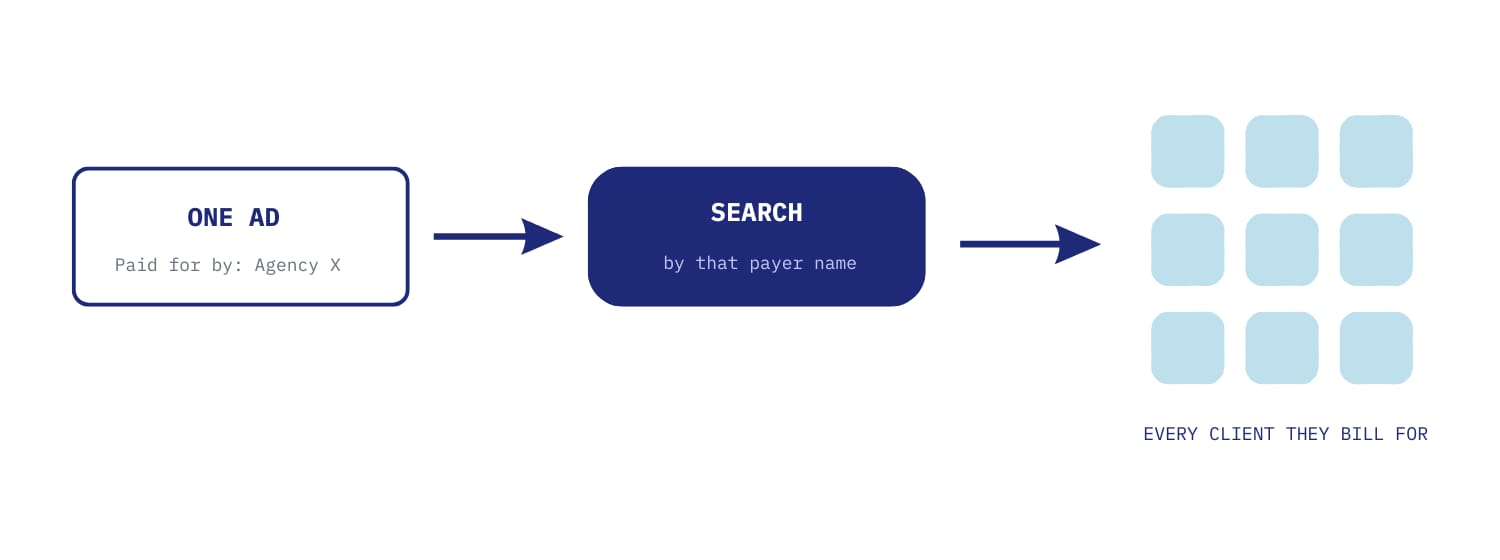
When the payer is an agency, search that agency's name in the Payer field. You get the other advertisers it pays for. Agencies often specialize in one industry, so the list can include competitors you didn't know about.
Extra data on ads targeted at the EU
When an ad's targeting includes the EU, the detail page shows the dates, plus two more panels:
- Ad Impressions: the total impressions as a range (for example 30k-50k), and the share of each country, rounded to the nearest percent
- Ad Targeting: what the advertiser targeted. For Language and Location you see the actual choices (English, a list of countries). For the other categories, like job, company, or interests, LinkedIn only says "Targeted" or "Excluded"
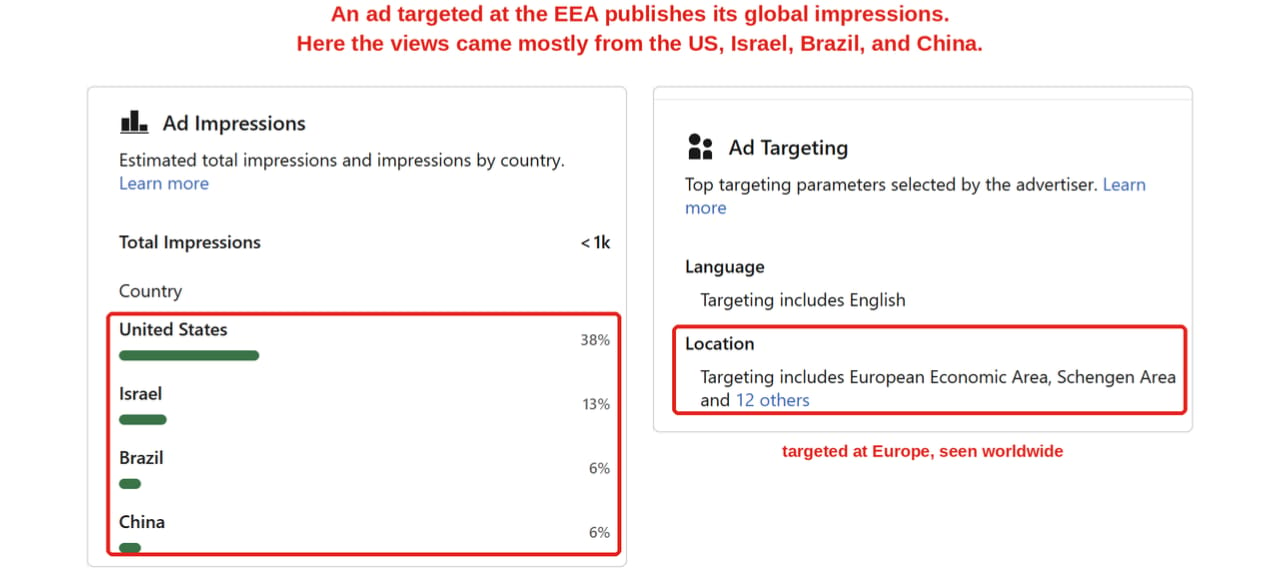
The impressions are for the whole ad, not only the European part. In the ads we checked, one EU country in the targeting was enough: an ad aimed at the United States, Singapore, and Europe showed its worldwide impressions, while a US-only ad showed no dates and no numbers at all.
So check the big international advertisers in your market first. They rarely leave Europe out, and the country split shows where they push the most. It works both ways: add an EU country to your own campaign and your competitors can read the same numbers about you.
Step 5: Find the winning ads
You can't see results, but on ads that show their dates (the ones targeted at the EU, see Step 4) you can see how long an ad has been running. Most international advertisers include Europe, so that's usually plenty of ads to work with. A company that watches its numbers stops paying for an ad that doesn't bring anything, so an ad that has run for months is likely a winner.
It's a strong hint, not proof. Some accounts are never cleaned up, and a mediocre ad can run for a year because nobody looked at it. Trust the signal more when the advertiser is clearly active, with new ads every few weeks.
LinkedIn only sorts by date, so you have to open ads one by one and read the "Ran from" line (the tracking section below shows how to sort by run time instead). For ads targeted at the EU, the impression filter from Step 3 is a shortcut to the biggest ones.
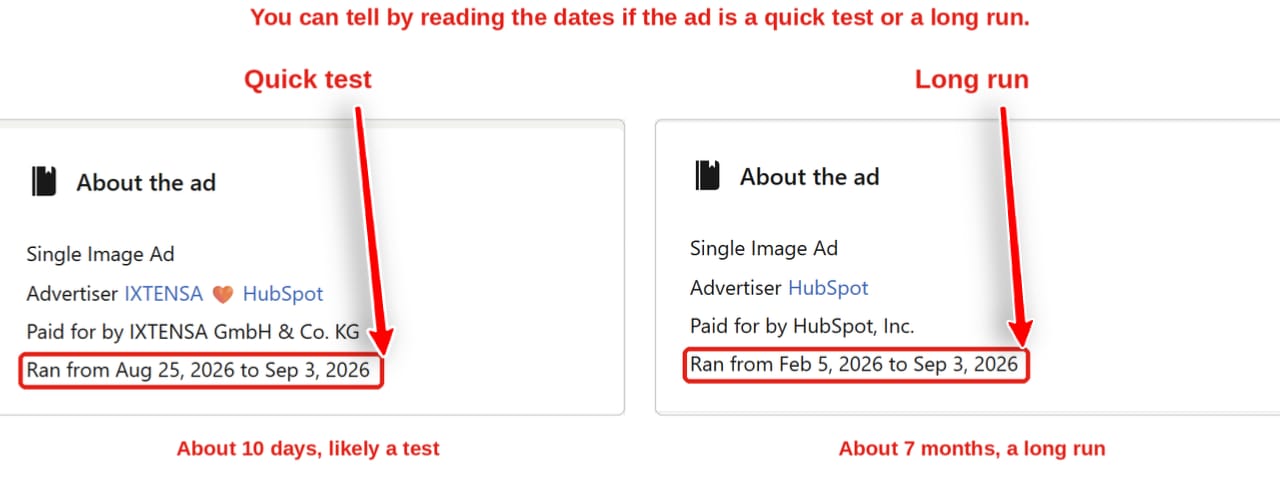
When you find an ad that has been running for three months or more, long enough to rule out a test or a one-off event, write down four things:
- The first line of the copy, the one that has to stop the scroll
- The offer: demo, free trial, webinar, guide
- The CTA
- The landing page it sends to
Do this for five or six long-running ads and patterns show up: the same offer again and again, or the same angle in the first line. That's what to test with your own product.
Be careful with short ones though. An ad that ran only ten days is not always a failure, it might be a webinar with a fixed date. Look at what it's selling before you judge.
Bonus: find the campaign name in the ad's link
Click the CTA of an ad and look at the URL of the page you land on. Many companies add UTM tags to their ad links, small labels at the end of the URL that tell them where a visitor came from. The tags are still in the URL when you arrive.

A link ending in utm_campaign=Academy tells you the ad belongs to a campaign called "Academy". Some companies go further and put the audience or the offer in the campaign name (something like utm_campaign=hr-directors-demo), which gives away the targeting that LinkedIn hides.
This doesn't work on every ad. Message Ads and lead forms keep people inside LinkedIn, so there's no link to follow.
Track competitor ads automatically
The steps above give you a snapshot. To follow competitors over time without redoing them every week, use AdKit's Ad Library:
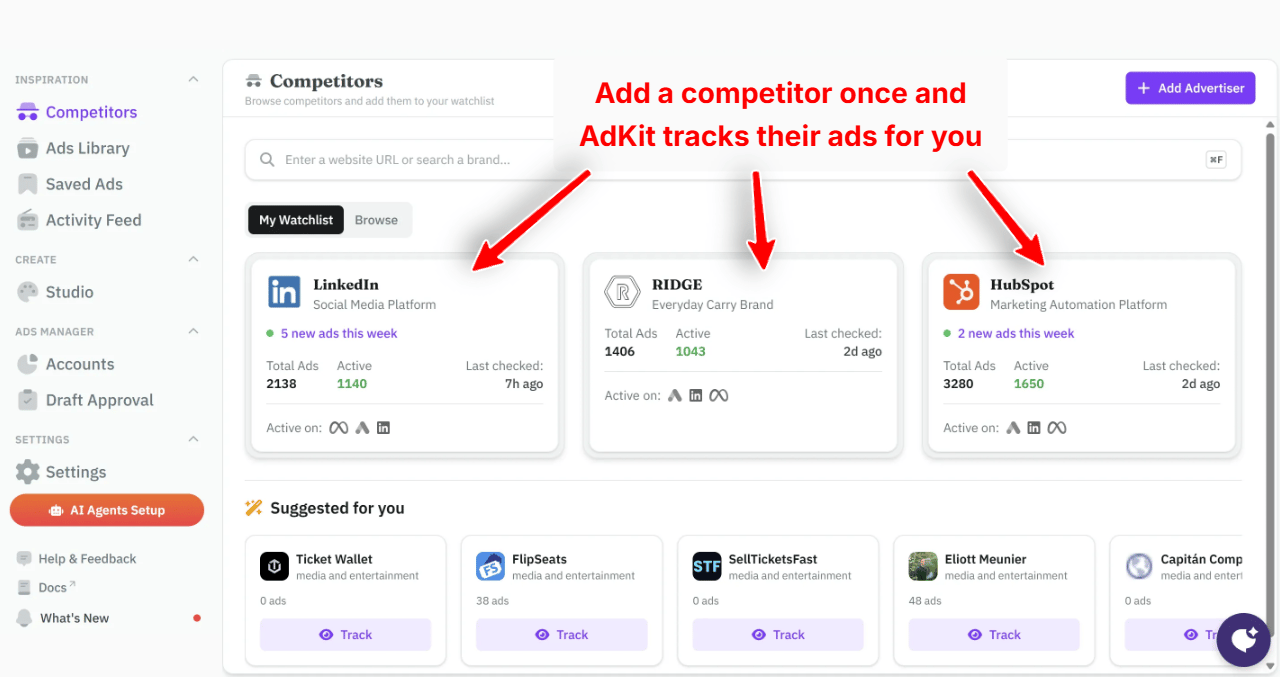
- Add your competitors to your watchlist. Their LinkedIn ads are collected from there.
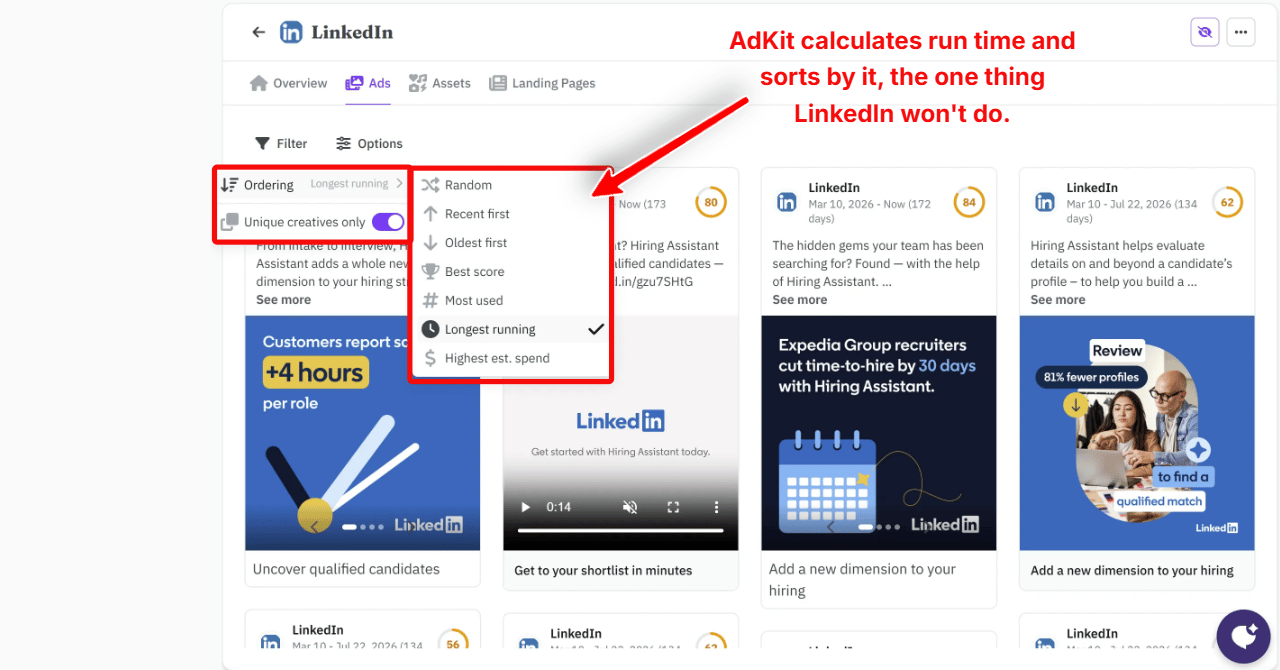
- Open a competitor's "Ads" tab and sort by longest running. The ads you were opening one by one in Step 5 are now at the top, with the run time in days on each card. You can also sort by most used (the creative that appears in the most ads), or by highest estimated spend. The spend is an estimate based on the impressions LinkedIn publishes, so it only exists for ads targeted at the EU.
- Check the Activity Feed to see what's new. Every ad a competitor launches shows up there, grouped by day.
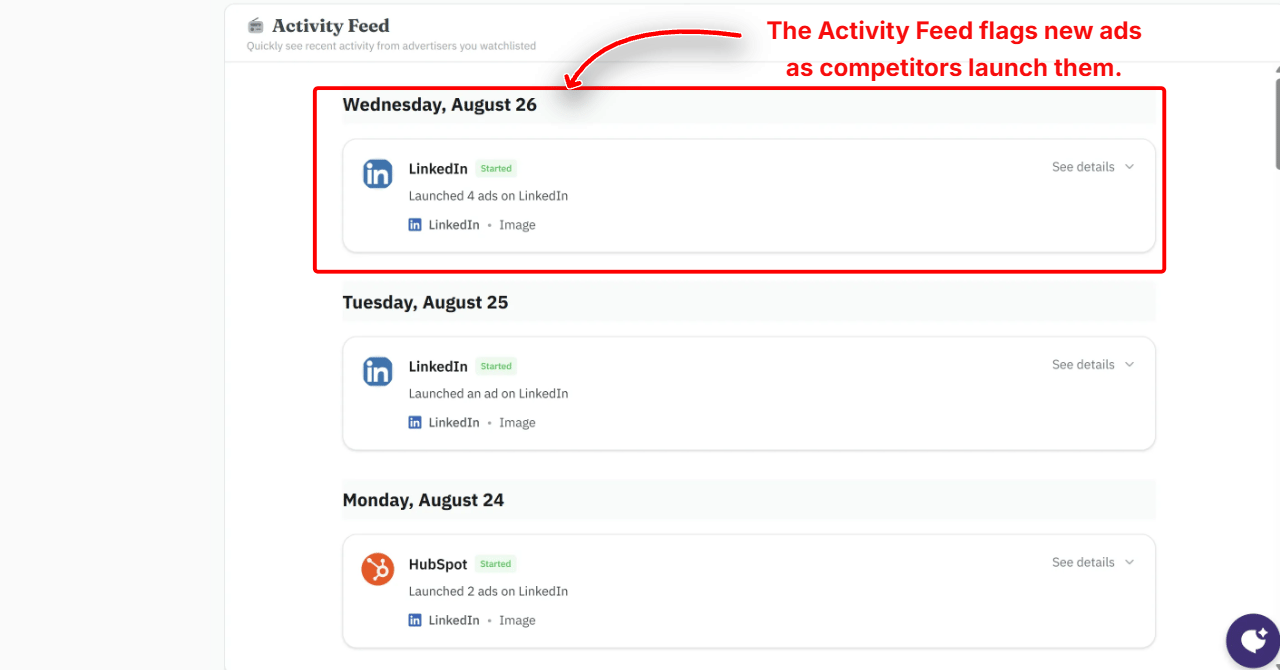
Ads stay in your watchlist after they drop out of LinkedIn's one-year window, so you can still compare what a competitor says today with what they said last year. It also follows each company's Meta and Google ads.
Other ways to see competitor ads
The library only covers LinkedIn, and only what LinkedIn decides to show. Two other ways to see a competitor's ads:
- Check their other platforms. Most B2B companies also run ads on Meta and Google, and both have a public library: the Meta Ad Library and the Google Ads Transparency Center. Same method there: find the long-running ads and study them.
- Get retargeted on purpose. Go to your competitor's website and interact with it: visit the pricing page, download a guide, start a signup. That's often enough to enter their retargeting audience, and their ads will likely start showing up in your LinkedIn feed. In the feed you also see the comments and reactions, which the library never shows.
Troubleshooting
An ad shows no dates and no impressions
Its targeting doesn't include the EU. LinkedIn only publishes the dates, the impressions, and the targeting for ads targeted at the EU (Step 4). For the rest you get the creative, the advertiser, and the payer, nothing else.
An ad has no preview and no advertiser name
LinkedIn calls these restricted ads and hides the preview, the advertiser, and the payer "to comply with the law". There's no way around it.
A keyword search returns ads that look unrelated
The keyword match is loose (Step 2). An ad can match on one of your words only, and the word can be in the CTA or in the job title of the person whose post is promoted. Open the ad and use Ctrl+F to find it, or search a single, more specific word.
A company's name returns nothing
See "Can't find their ads?" in Step 1: check for a leftover filter, the one-to-two-day delay, and a different advertiser name.
Final thoughts
Start small: your three closest competitors and two or three indirect ones. Come back a month later and check which of their long-running ads are still live. Those are the ones to learn from.
When you copy, copy the structure, not the words. Your buyer has already seen their ad, so the same sentences under your logo look like a knockoff. If a long-running ad opens with a problem and ends on a free trial, test that shape with your own product.
Frequently asked questions
Yes. It's a public page at linkedin.com/ad-library.
No, it works while you're logged out.
No. There are no clicks, conversions, or engagement numbers anywhere in the library.
No. Ads targeted at the EU show an impressions range, never the spend.
Only on ads targeted at the EU, and only partly. You get the language and the locations. For job titles, companies, or interests, LinkedIn only says whether they were targeted or excluded.
There's no active badge. On ads targeted at the EU, the end date is the day of the ad's last impression, so an ad that ends today or yesterday is most likely still live.
The count is the number of ads, not the number of different creatives. The same creative is often listed several times because it runs in several campaigns.
Yes, with the full message. Search %FIRSTNAME% as a keyword to find them.
One year after an ad's last impression, and nothing that ran before June 1, 2023.
Yes, but you have to apply for access, the terms forbid commercial use, and the library itself has no export.
No.