

You can see almost every ad a competitor runs on Facebook for free. It takes about a minute and no account. The tool is the Meta Ad Library, a public database of the ads running across Facebook, Instagram, Messenger, and more.
Searching is the easy part. Search a brand and you get hundreds of ads with no way to tell which ones make money. An ad that has been running for months is probably profitable, and those are the ones to study.
The steps below cover finding a competitor's ads, telling winners from tests, reading them, and pulling targeting and reach numbers from the EU panel.
What the Meta Ad Library shows and hides
The library shows the creative side of a campaign in full. Spend and performance numbers stay hidden.
It also does not keep every old ad. When a regular (non-political) ad stops running, it drops out of the library within about 24 hours.
Note: there are two exceptions. Ads about social issues, elections, or politics are archived for seven years, and ads delivered in the EU or UK stay for one year after their last impression. Everything else disappears when the advertiser turns it off.
- The creative, primary text, headline, and CTA
- The landing page URL
- Every platform the ad runs on
- The date the ad started running
- How many versions of the ad are live
- For EU and UK ads: targeting and reach
- Performance: clicks, conversions, ROAS
- Exact spend for regular (non-political) ads
- Targeting for ads delivered outside the EU or UK
- Impressions (never shown, even for EU ads)
- Stopped ads (removed unless political, or EU/UK delivery)
You can still estimate some of it: an ad that runs for months is probably making money, and EU reach numbers give a sense of budget. Both are covered in the steps below.
Step 1: Find your competitor's ads
Go to facebook.com/ads/library (no login required). Set the ad category to "All ads" and leave the country on "All": the widest net is the best starting point, and you can narrow down later.
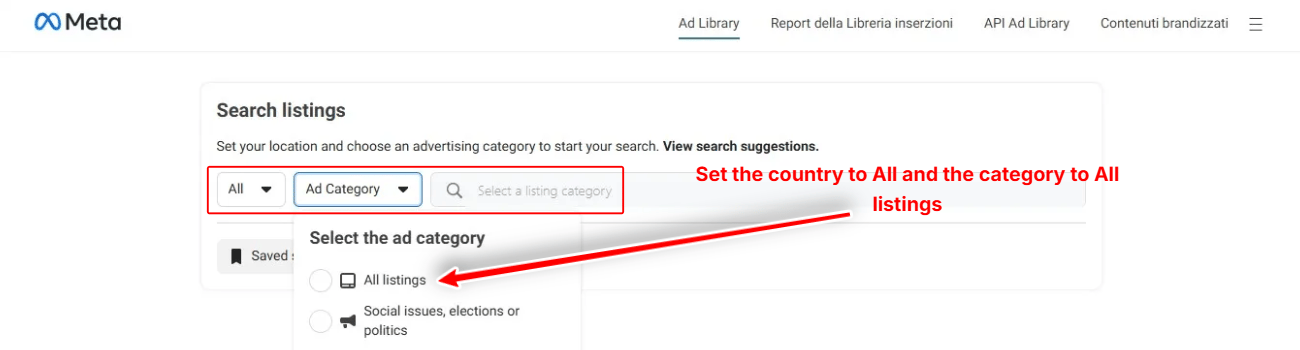
Note: Meta's wording varies between accounts: you may see "All listings" instead of "All ads," as some screenshots here do.
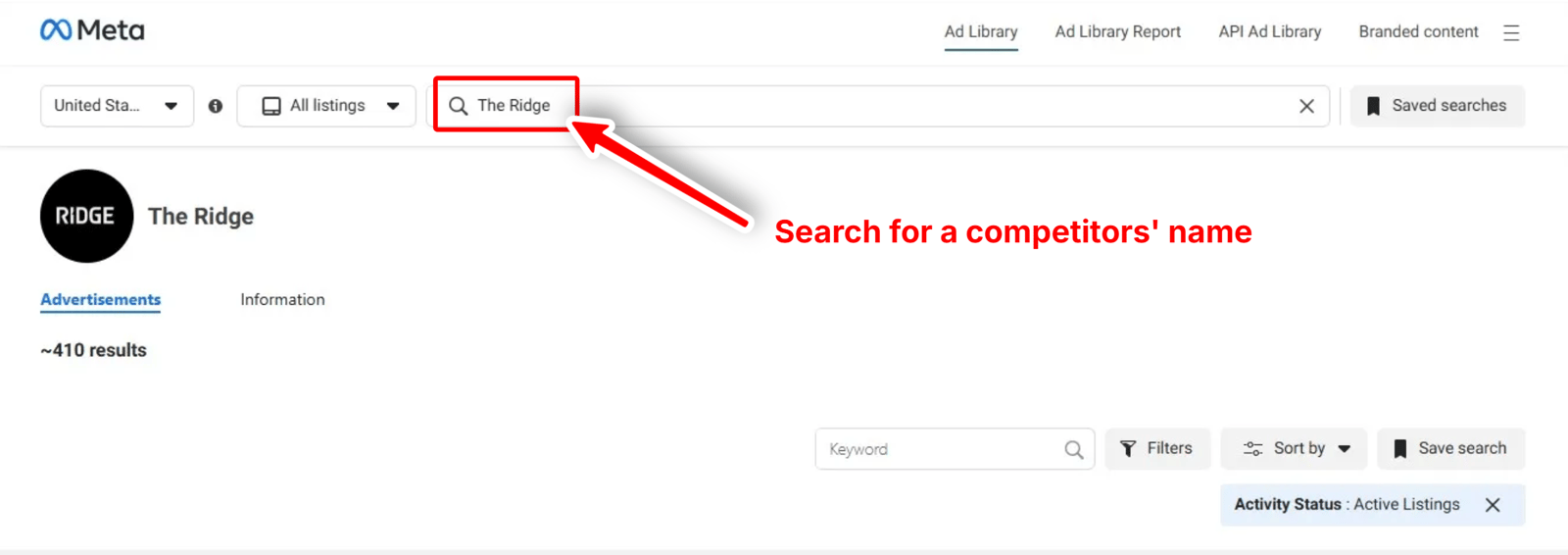
Then type the competitor's brand or Page name into the search box. It matches both Page names and keywords, so pick the advertiser from the suggestion list to be sure you have the right company. One business can also run several Pages, often one per region or product line.
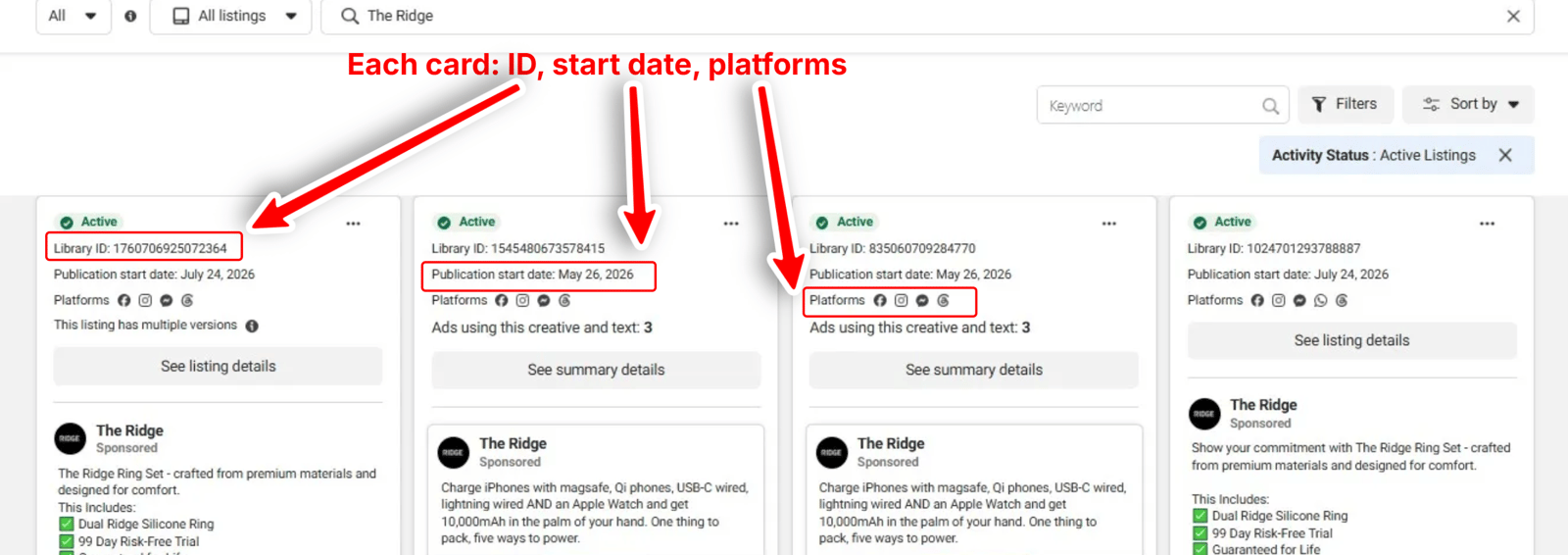
The results show every ad that advertiser is currently running. Each card has a Library ID, a start date, and the platforms the ad appears on.
Step 2: Filter the results
In case you get lots of noise and want to narrow down the results, four filters are worth knowing:
- 🌍 Country. One market to see what a brand runs there, or "All" for their global footprint.
- 📱 Platform. Isolate Facebook, Instagram, Messenger, Audience Network, or Threads to compare their feed creative against their Reels and Stories creative.
- 🎬 Media type. Image or video, the quickest way to see which format a competitor leans on.
- 🏷️ Ad category. Leave it on "All ads." Any other value, such as "Issues, elections or politics," hides regular ads entirely.
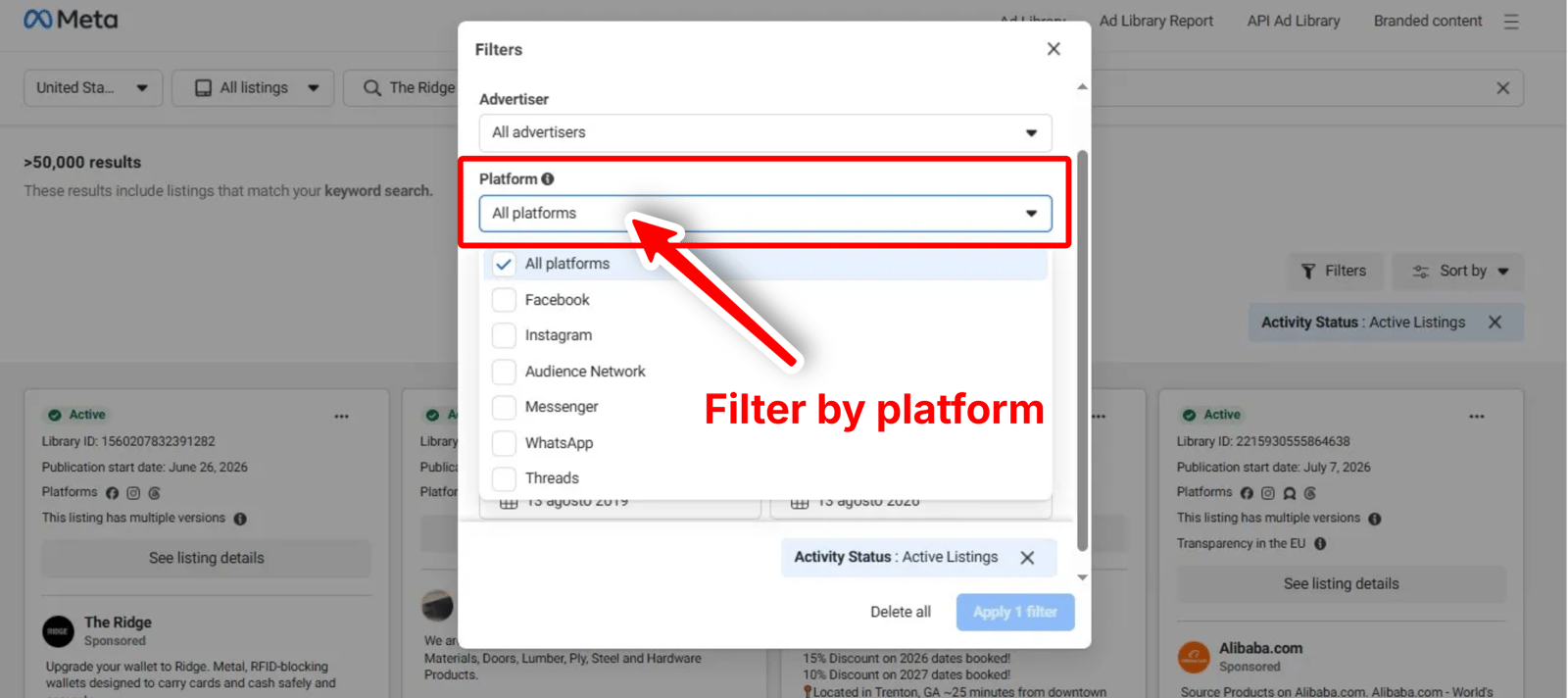
Set the sort to newest to see what a brand launched this week, useful when a rival starts a new campaign.
Step 3: Get an ad's details
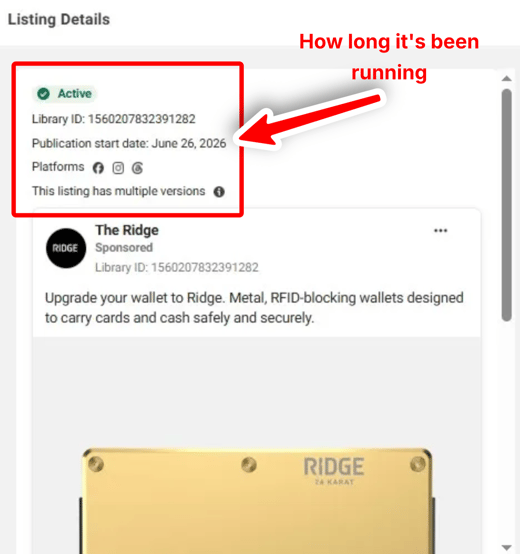
Click an ad to expand it. You get the primary text, the headline, the call-to-action button, and the landing page it links to.
Note the start date: today's date minus the start date is the ad's run time, and run time is how you will separate winners from tests in the next step.
Two labels are easy to mix up. "This ad has multiple versions" means one ad carrying several creative variations, with different text or media under the same Library ID. "Ads using this creative and text" is the one that means the same creative was launched across several ads.
Check the format too: single image, carousel, or video. A brand that runs mostly video is putting its budget into video. Save the ads worth revisiting to your swipe file.
Step 4: Tell winners from tests
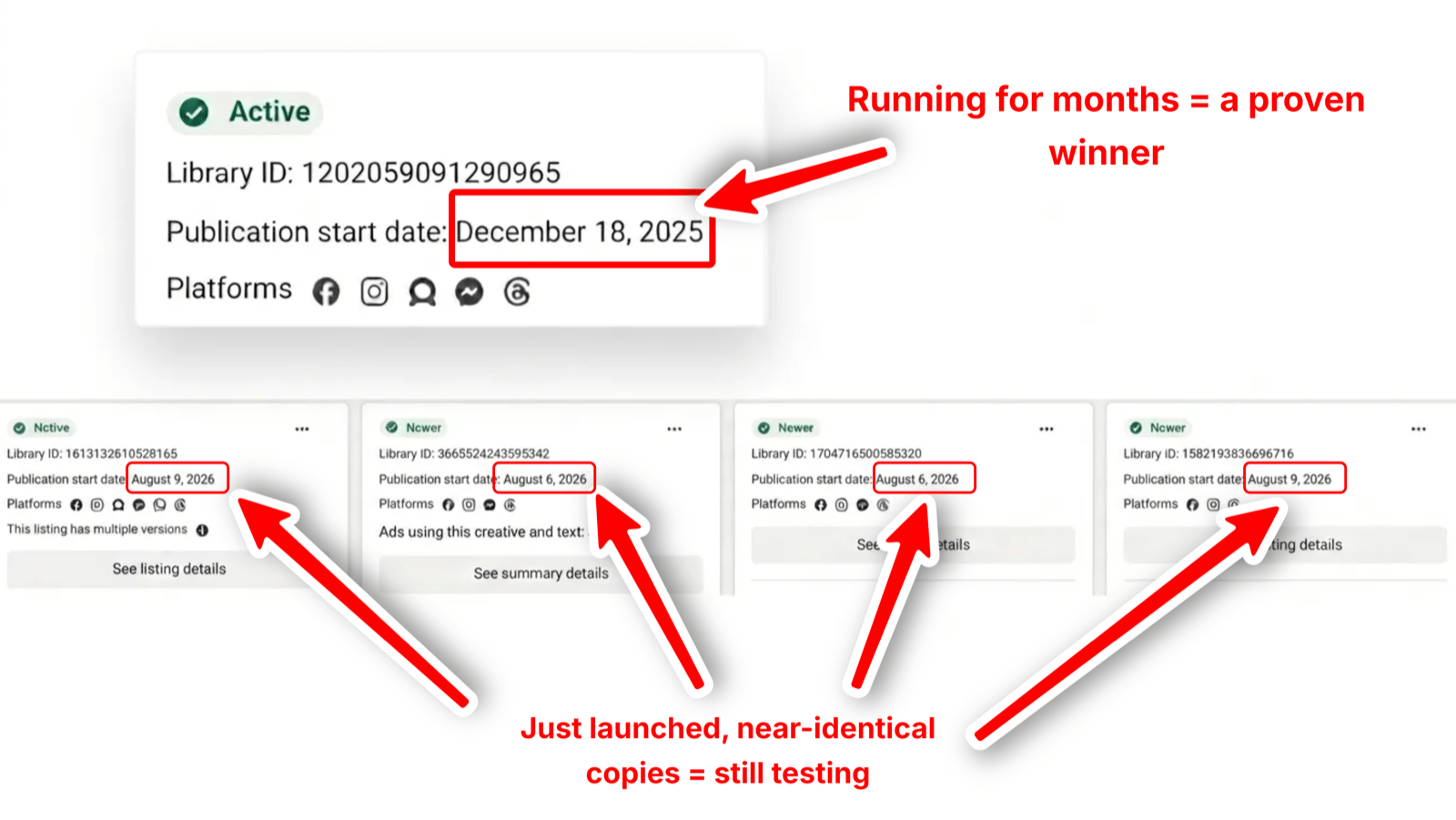
To tell them apart, check how long each ad has been running:
- An ad that has been live for months is likely a winner.
- A burst of ads that all started this week is active testing.
- Many similar ads with small variations means they found a winner and are now testing variations of it.
- One ad that ran for three days and vanished was a test that failed.
In the example below, some ads have been live since spring, while clusters of new ads show up with start dates a few days apart.
Start dates also show seasonality. A brand launching its Father's Day creative in June tells you when its category ramps up spend.
You can do all of this by hand: open the library, read every start date, keep your own list. It takes a while, and Step 7 covers how to automate it.
Step 5: See EU targeting and reach
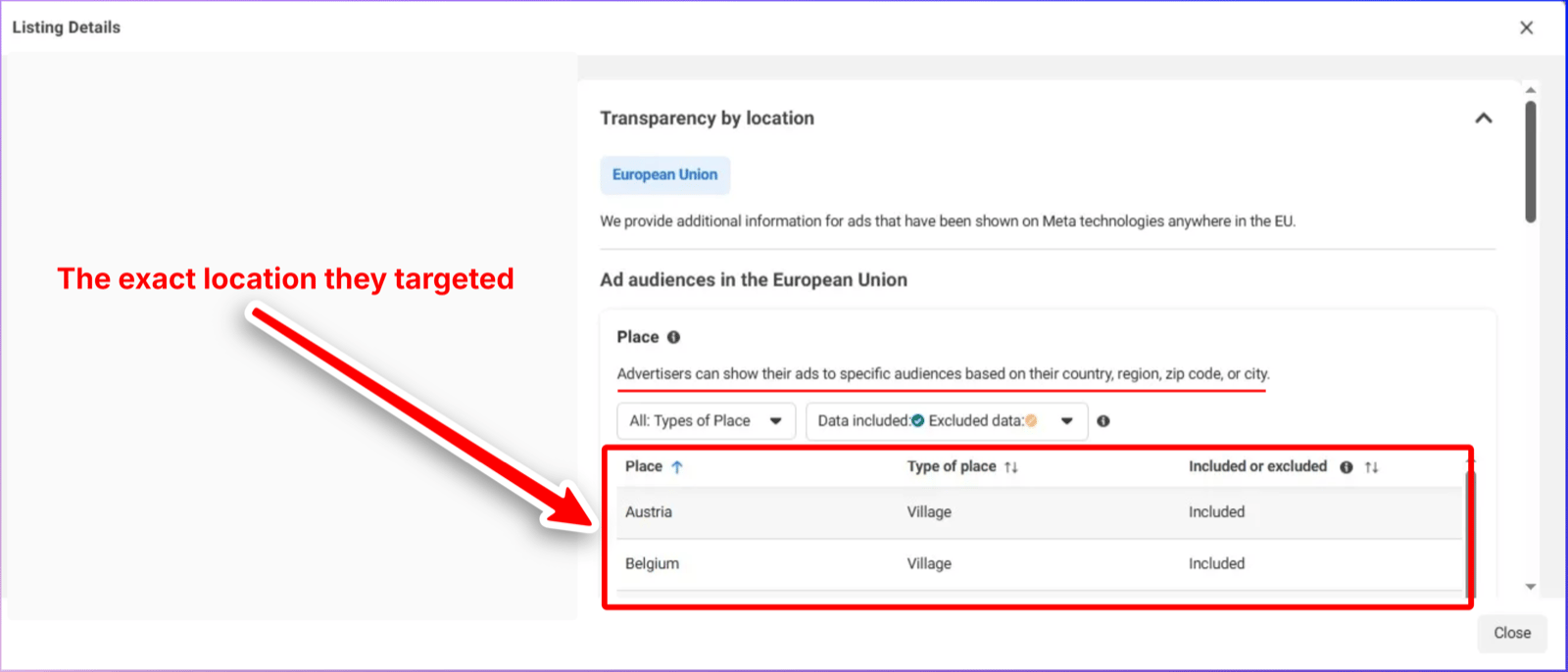
The Digital Services Act forces Meta to publish targeting and reach for ads delivered in the EU and UK. Outside those regions, targeting stays hidden.
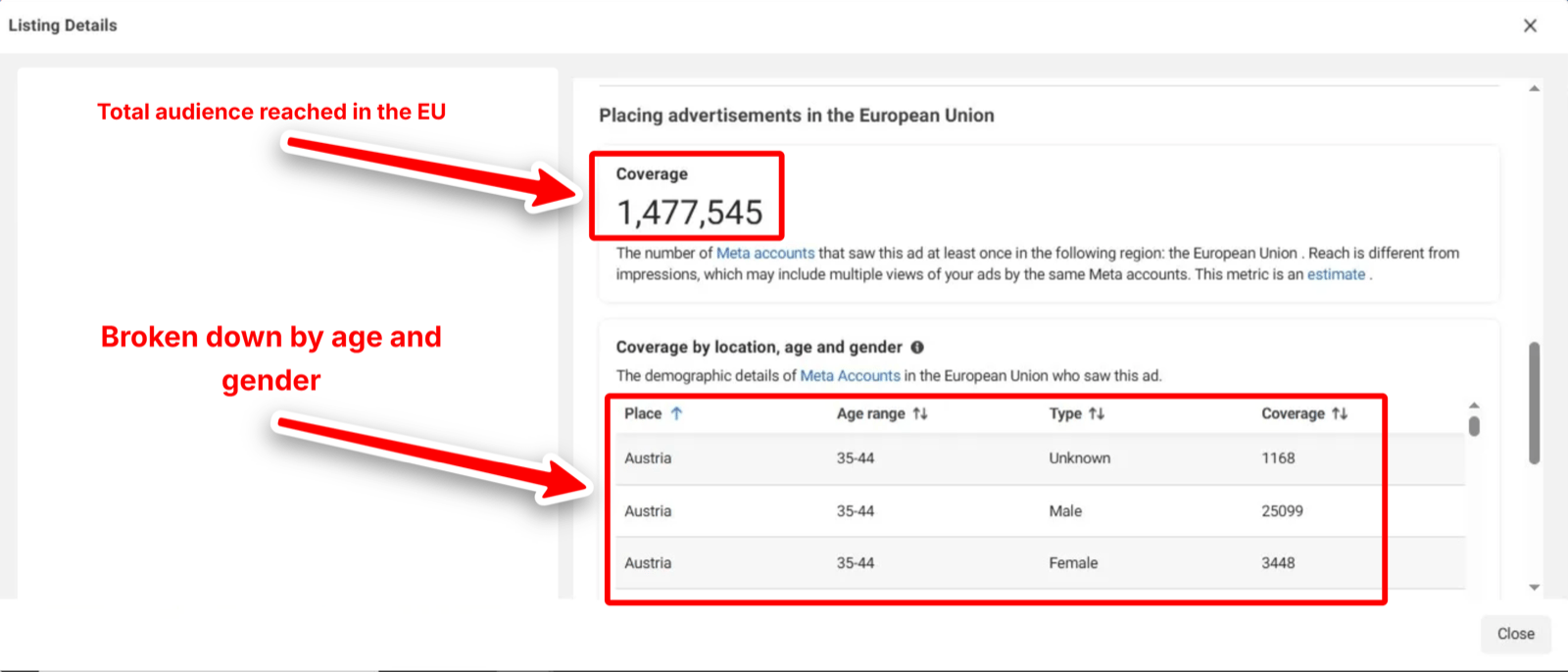
Switch your country filter to an EU member state and open an ad with the "EU transparency" label. You get the targeting (age, gender, included and excluded locations) and the reach, which Meta labels "Coverage": how many accounts saw the ad, split by country, age, and gender. One ad in the example below shows 1,477,545 accounts reached.
Because of the same regulations, EU and UK ads stay in the library for a year after their last impression, so the panel works on stopped ads too. Impressions are never shown, only reach.
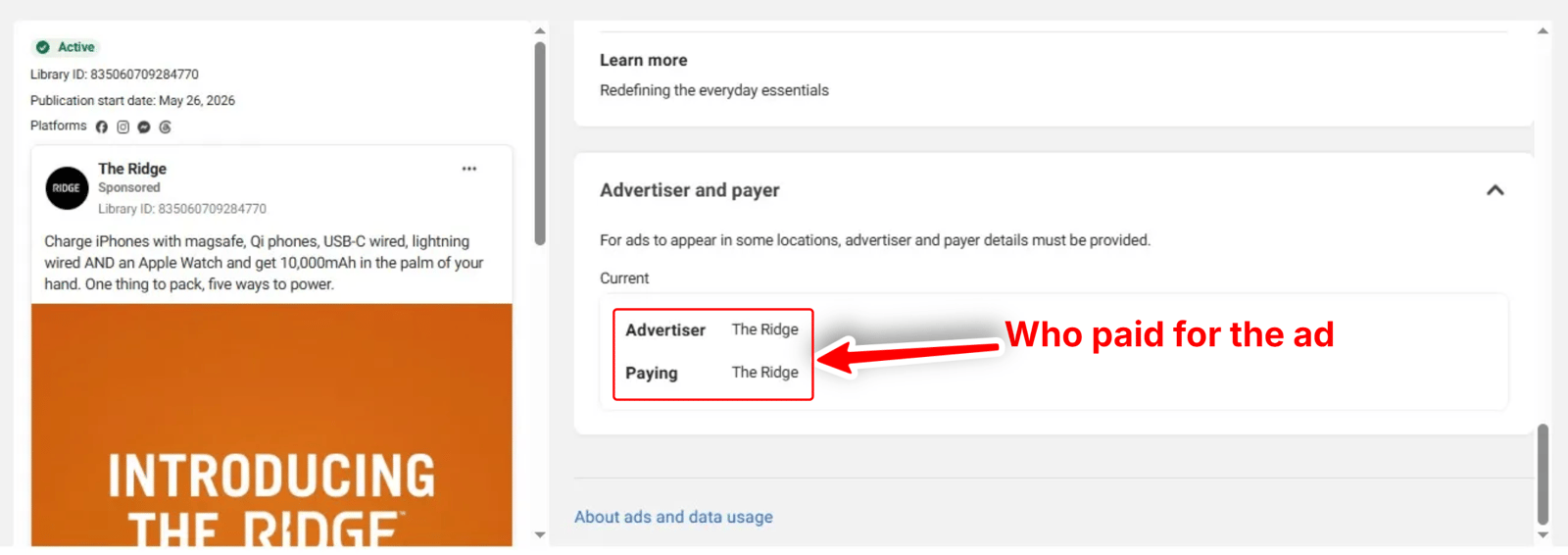
The panel also names who paid for the ad. A name you don't recognize could mean the ads are managed by an agency or a parent company.
Step 6: Map the full funnel
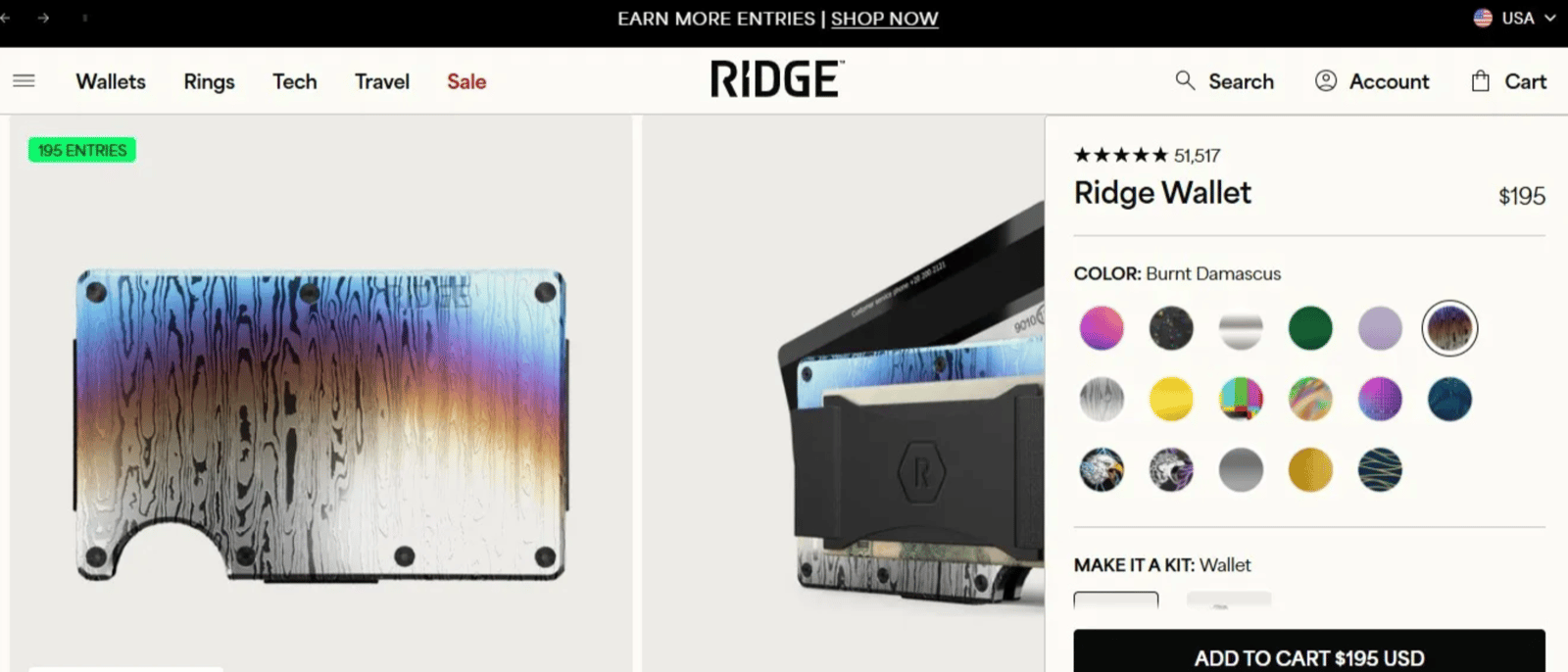
Most ads send clicks to a landing page, though some use lead forms or Messenger instead. When there is a page, open it. It shows the price, the discount, the review count, and whether the traffic goes to a single product or a bundle. Together, ad and page are the full funnel, from hook to checkout.
Step 7: Track competitor ads automatically
Everything mentioned so far is a one-time check, meaning you would need to redo it every week or so to catch the latest ads and updated stats. To automate the monitoring, use AdKit's Ad Library:
- Add the competitor to your watchlist.
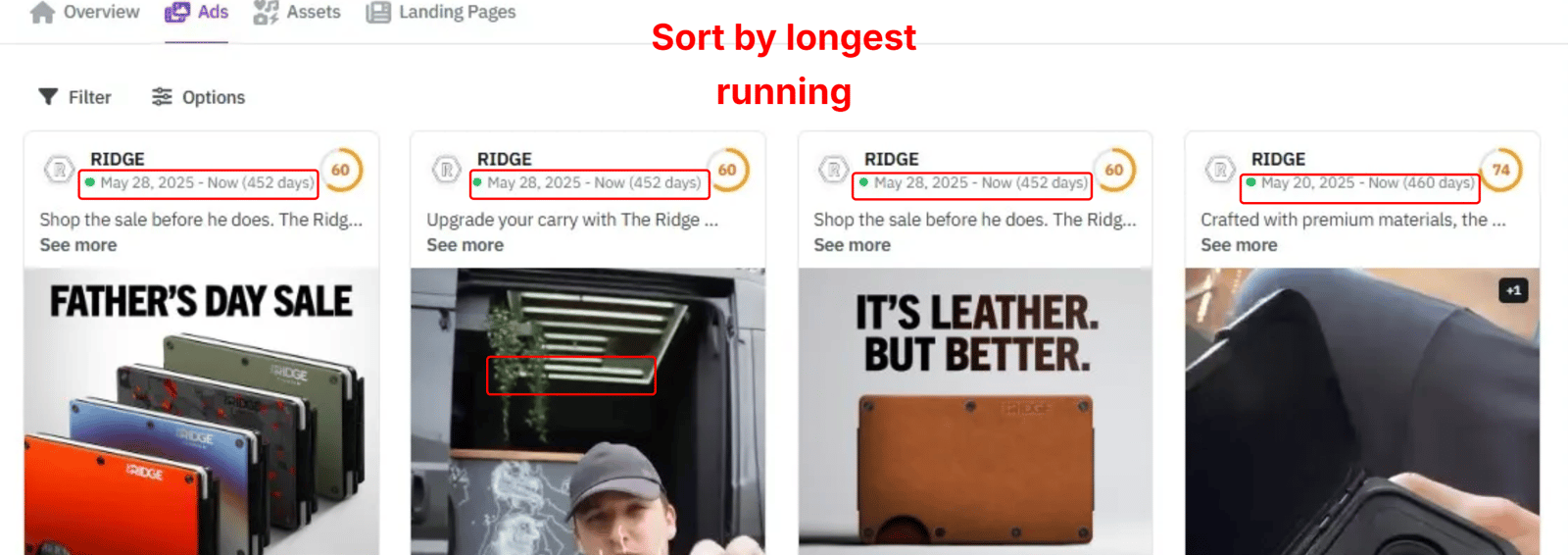
- Open their "Ads" tab and sort by longest running, most used, or highest estimated spend.
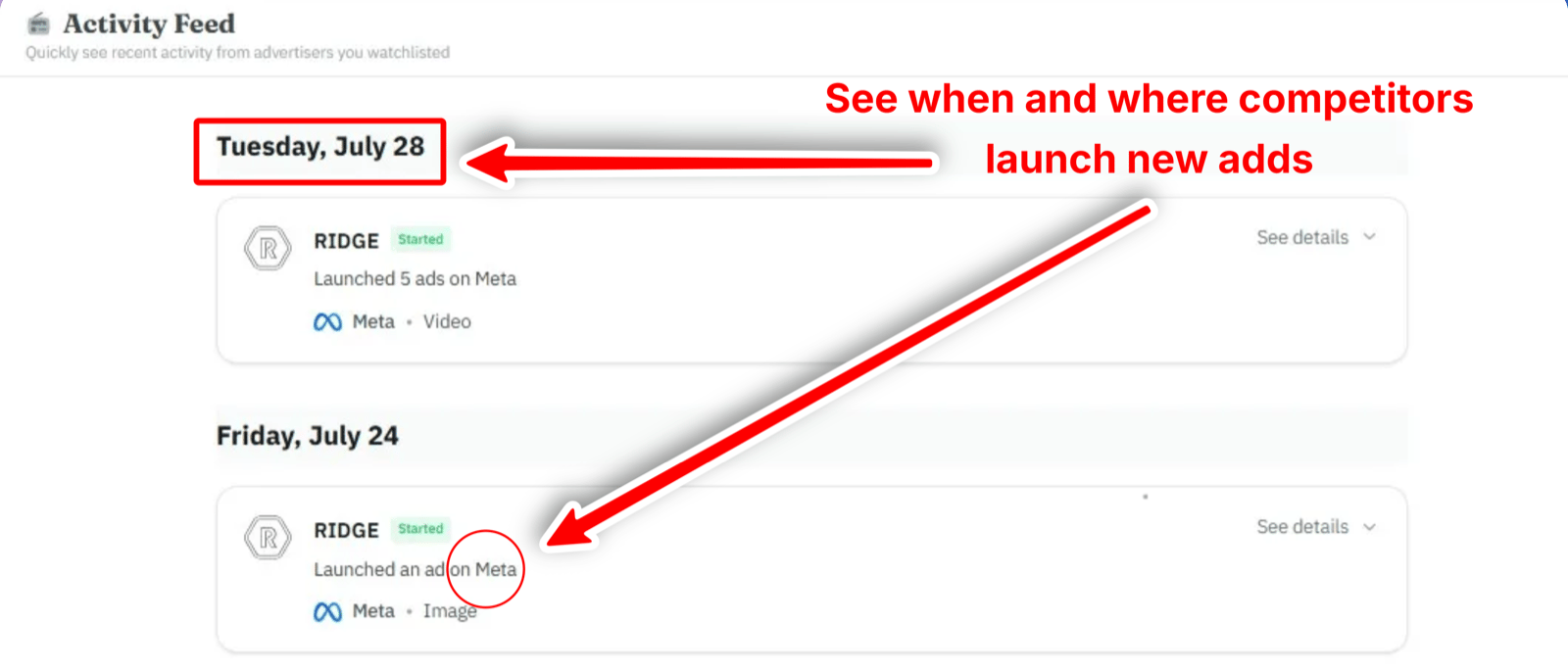
- Check the Activity Feed to see when they launch new ads, on which platform, and in what format. The same updates are available as a daily or weekly email digest.
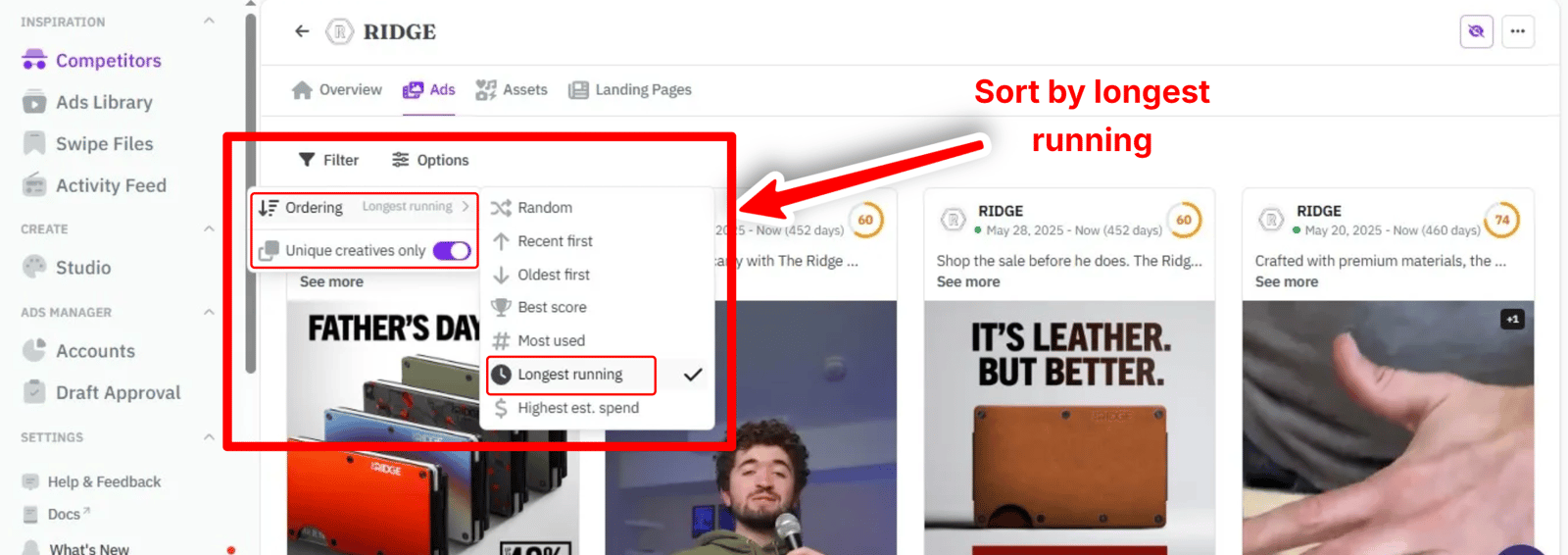
In the example below, sorting by longest running puts ads live for 452 and 460 days at the top, the creatives worth studying first, while the recent tests drop to the bottom.
And the Activity Feed, with each launch grouped by day:
Can't find your competitor's ads?
An empty result does not always mean the competitor runs no ads. Check three things first.
Check your filters. The library defaults to active ads only, and any filter can hide ads that exist: an ad category other than "All ads," a country where the brand does not advertise. Reset them all.
Check the name next. Ads run from a Facebook Page, and the Page name does not always match the brand name you know. Find the competitor's actual Page on Facebook, search that exact name, and watch for regional Pages like "Brand UK."
New ads also take time to show. An ad usually appears within 24 hours of its first impression, and a recently renamed Page can take longer to become searchable.
But there is a faster and easier way to check whether they run ads at all:
- Open their Facebook Page.
- Go to "About," then "Page transparency," and click "See all."
- Click "Access the Ad Library" to land directly on their ads and see whether they run any. Remove the default "Active ads" filter to include stopped ads.
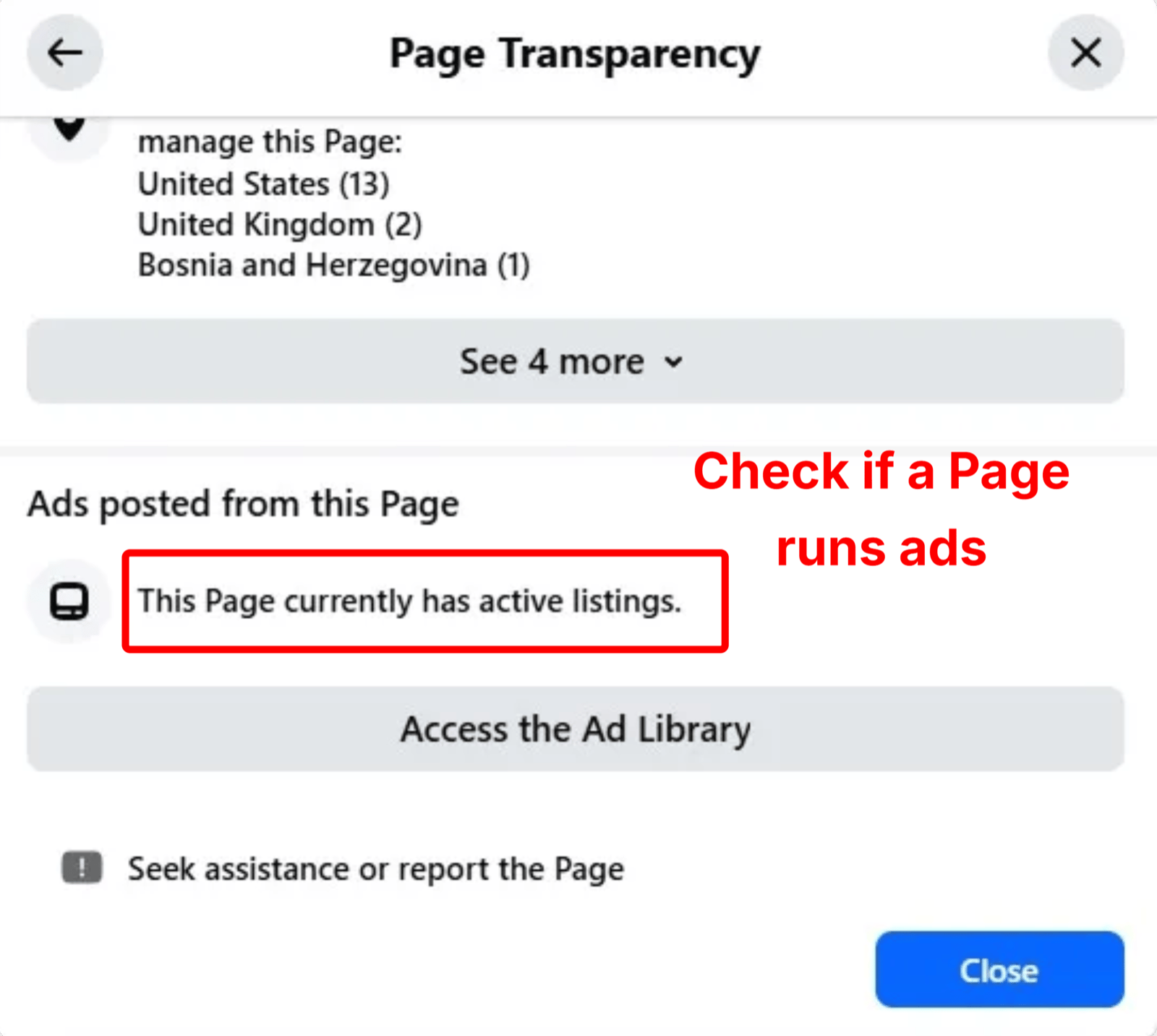
If nothing shows up there, the empty result is correct. The competitor is not active on Meta right now.
Other ways to see competitor ads
First, get retargeted on purpose. Go to your competitor's website and interact with it (sign up, add something to the cart) to trigger their tracking events, and their retargeting ads will likely start showing up in your feed. You get to see the likes and comments the library never shows, and an overall idea of their retargeting strategy.
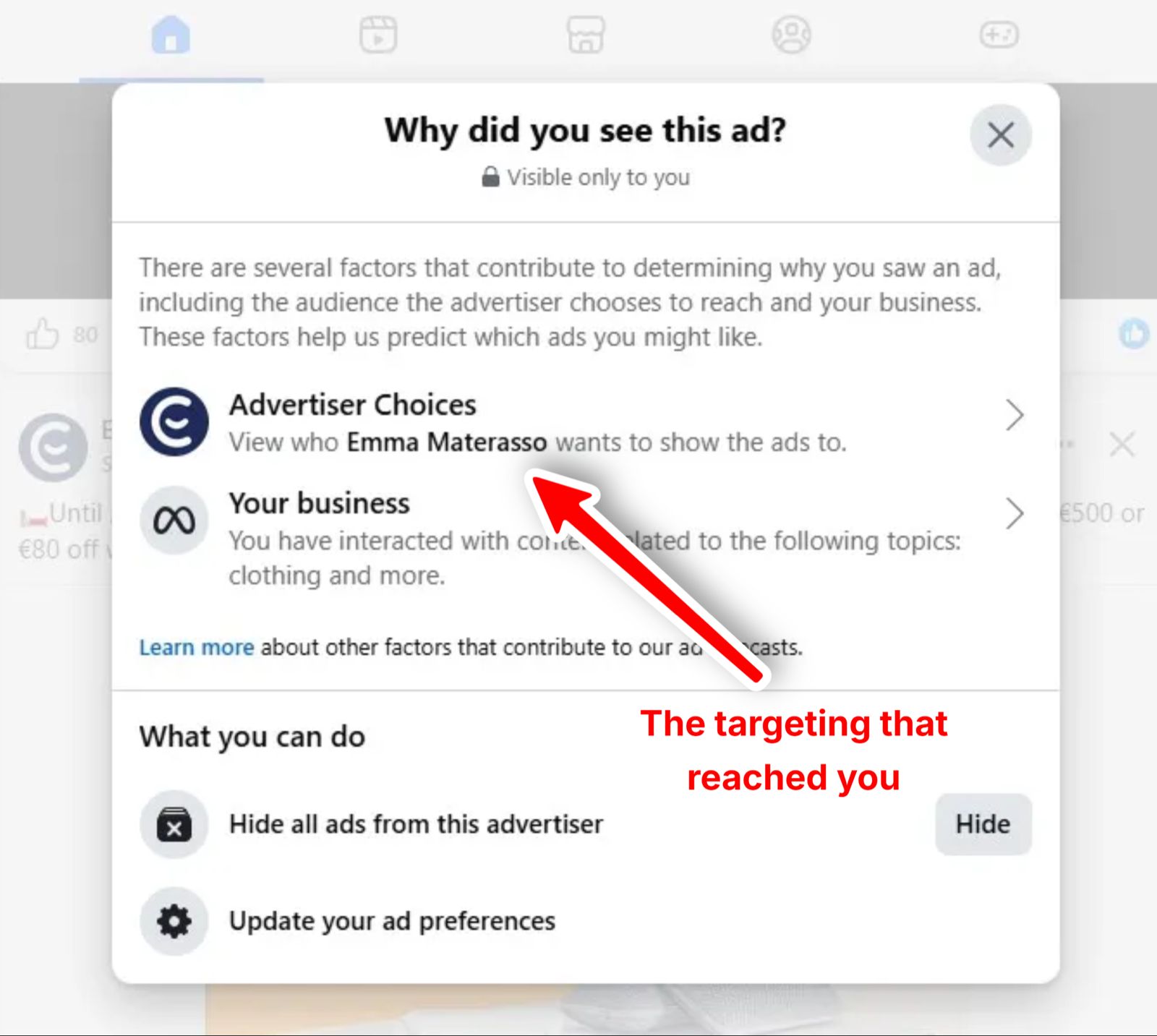
Second, when a competitor's ad appears in your feed, click the three dots on it and choose "Why am I seeing this ad?" Meta shows the targeting that reached you, such as an age range, a location, or an interest. Outside the EU and UK, this is the only targeting detail you can get.
Like or comment on their ads when you see them. Meta then treats you as a potential customer and shows you more of them.
Final thoughts
You can see competitor ads on Facebook for free, in a minute, with nothing but the Ad Library and a browser. Finding them is the easy part: the value is in the long-running ads, the EU and UK targeting panels, and checking back over time instead of looking once.
When you copy, copy the structure, not the words. If a long-running ad leads with a problem and then a guarantee, test that shape with your own product instead of lifting their copy.
And if the competitor also runs search ads, the Google Ads Transparency Center is Google's version of the library.
Frequently asked questions
No. The Ad Library shows the creative and the run dates, not clicks, conversions, or ROAS. The closest proxy is run time, because an ad that stays live for months is likely performing.
Not for regular (non-political) ads. Spend ranges appear only for ads about social issues, elections, or politics. For everything else you estimate scale from EU reach data or a tracking tool.
Only for ads delivered in the EU or UK, where the law forces Meta to show age, gender, location, and reach. Outside those regions, targeting is hidden, and the "Why am I seeing this ad?" button on an ad in your feed is the only way to get a hint.
Yes. It is public, free, and needs no Facebook account. Anyone can open it at facebook.com/ads/library.
It depends on the ad. Regular ads vanish when they stop, EU and UK ads stay for a year after their last impression, and political ads stay for seven years.
Reach counts how many separate accounts saw an ad. Impressions count how many times it was shown, including repeat views by the same person. The Ad Library shows an EU reach estimate and never shows impressions.
No. The Ad Library is anonymous and needs no login, and it gives advertisers no report of who browsed their ads. You can research as much as you like.
Yes. These ads are public by design, and Meta built the library specifically for transparency. You are viewing published ads, not private data.