

Meta shows this error when it wants the person behind an ad account to confirm it's really them. Until they do, Meta rejects new ads and edits sent from your tool. Your live ads keep running.
It's a known issue with third-party tools and AI agents that publish to Meta for you. Editing by hand in Ads Manager can still work, so the check is easy to miss.
In your tool, the error usually reads:
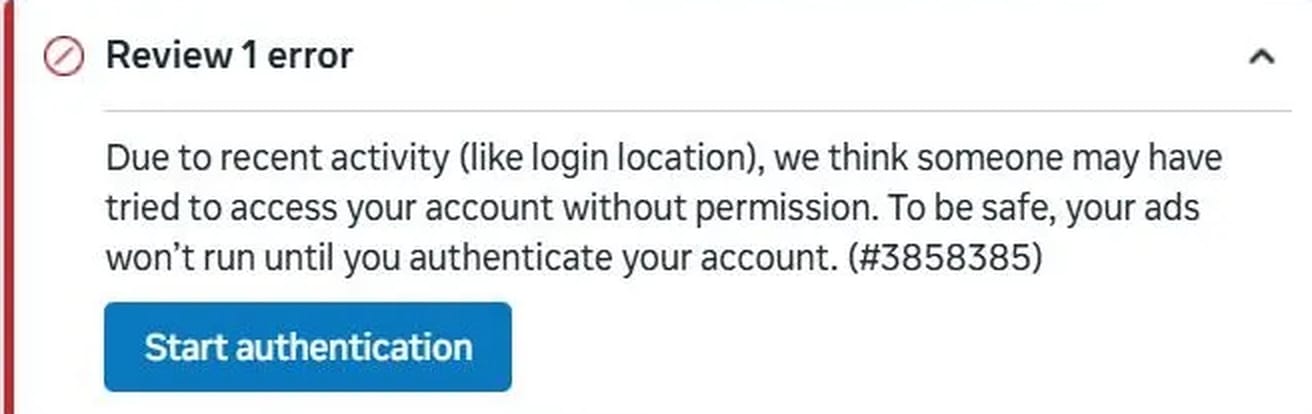
We think that someone may have tried to access your account without permission. For your protection, you won't be able to create or modify ads until you've authenticated your account in Ads Manager. Your existing ads will continue to run normally.
Behind that message is Meta error 31, subcode 3858385. Some tools only show a short version: "This request requires the user to take a pending action".
In Ads Manager, the same check looks like this:
How to authenticate your Meta ad account
- Log in to Facebook as the profile that connected your tool.
- Open Ads Manager on the blocked ad account, not the one that opens by default.
- Look for a red verification banner at the top of the page and enter the code Meta sends you.
- No banner? Rename any ad, click Publish, stay on the page, and click "Start authentication" when it appears.
- Retry the publish from your tool.
Note: Meta has no help page for this error, so the steps below are what advertisers report. On Meta's developer forum, developers describe ad creation failing through the API with no warning visible in Ads Manager. Between June and September 2026, AdKit saw it on about 20 ad accounts, every time on ads sent through the API.
Step 1: Open the blocked ad account
Log in to Facebook as the profile that connected your tool. Meta ties the check to that login, so only that person can clear it. A teammate with access to the same ad account through Business Manager can't do it for them, and neither can the tool.
Ads Manager opens on the last account you used, which may not be the blocked one. Click the account name at the top left to open the account menu, and pick the account your tool was publishing to. Or paste this address in your browser with the ad account's number at the end (the number under the account name in that menu):
https://adsmanager.facebook.com/adsmanager/manage/campaigns?act=YOUR_AD_ACCOUNT_ID
You should now see the campaigns of the blocked account, with its name and ID at the top left.
Step 2: Find the red banner
Check the top of the page for a red banner asking you to verify the account. Click it and enter the code Meta sends by email or text.
Once the code is accepted, skip to step 4 and retry from your tool.
Step 3: Rename an ad and publish
No banner? In the blocked account, open the Ads tab, hover any ad and click Edit.
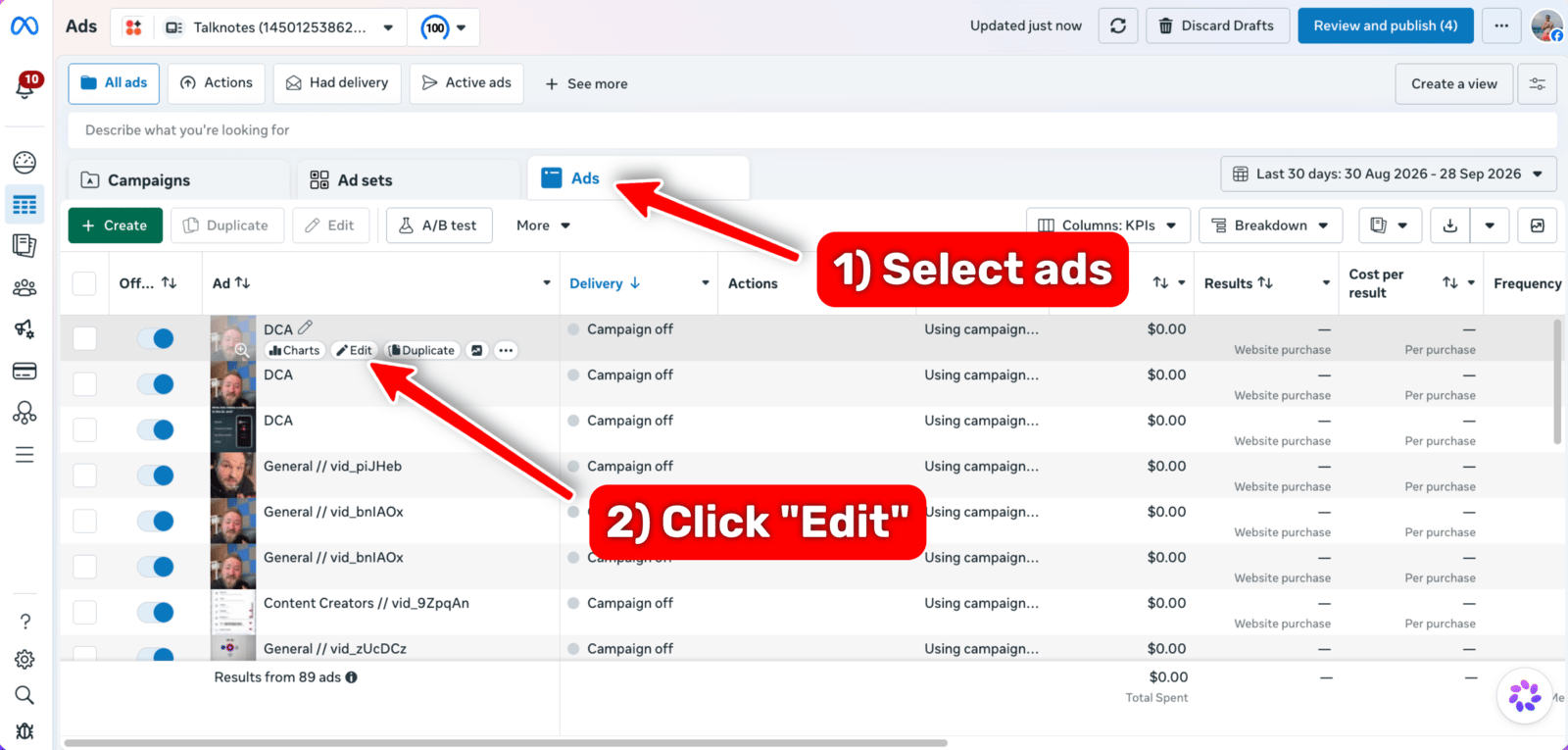
Change only the ad's name, click Publish, and stay on the page.
A review panel should appear on the right with the error and a "Start authentication" button. Click it and enter the email or phone code.
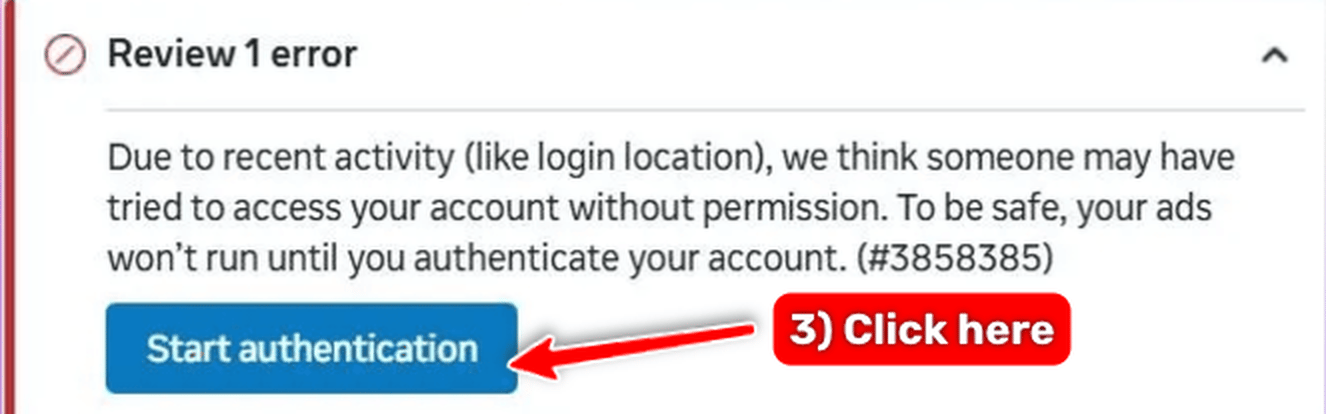
Note: the panel doesn't show up for everyone. If you renamed an ad and nothing happened, go to "If Meta shows no authentication prompt" below.
Step 4: Retry from your tool
Publish again from the tool that got blocked. If the publish goes through, you're done.
If your agent launches your ads, you should try AdKit. It gets one simple API for Meta, Google, TikTok and the rest, so it launches in fewer steps and burns fewer tokens. Many errors get handled for you automatically, and the ones only you can fix, like this one, come back as plain instructions. You pay one flat price, with unlimited calls.
Tip: when you connect a Meta ad account, sign in with the profile of the person who will be around to handle checks like this one.
If Meta shows no authentication prompt
No banner and no panel? Try these one at a time, and retry from your tool after each one:
- Wait about 20 minutes and retry. One AdKit customer did nothing else and the next publish went through.
- Reconnect Meta in your tool, publish a small change to a different ad account, then go back to the blocked account in Ads Manager and look for the red banner. The banner showed up this way for one AdKit customer.
- Open a private (incognito) window, log in as the connected profile, and go through Steps 1 to 3 again. This gives you a fresh login without anything your normal browser has saved.
- Turn on two-factor authentication on that profile: Accounts Center > Password and security > Two-factor authentication. Then go through Steps 1 to 3 again.
- Open Billing and payments from the Ads Manager sidebar, pick the blocked ad account, and look for a "Start authentication" prompt there.
- Open Account Quality, select the blocked ad account, and request a review.
- Contact Meta Business Support. Give them the error code and subcode, 31 and 3858385.
Frequently asked questions
Probably not. Meta often shows this check on accounts that publish through a third-party tool, even when nobody else has touched the account. Complete the verification and retry from your tool. If two-factor authentication isn't on yet, turn it on while you're there.
Retry from the tool first. If the publish still fails, disconnect and reconnect Meta in the tool, then retry.