

TL;DR: Google keeps asking for a passkey when you connect Google Ads? Pick the fix that matches your case:
- You created your passkey in the last 7 days: wait or approve it (Option 1).
- Older passkey, "Passkey not found", or a QR code: check you're using the right passkey (Option 2).
- Still stuck, on a company Google Workspace account: ask your admin to turn off the login challenge for 10 minutes (Option 3). It worked for one customer, but Google doesn't confirm it.
- Your passkey only works on one device: save a new one in Bitwarden (Option 4). It's a new passkey, so the wait from Option 1 applies.
No passkey yet? Create one in your Google Account (Security → Passkeys and security keys), even if your company hasn't turned passkeys on. Then go to Option 1.
Since 5 August 2026, Google has been rolling out a passkey requirement to connect Google Ads to outside tools. A password, an SMS code, or an authenticator app still signs you in to Google, but no longer works for this step. The rule only covers Google Ads, so Google Analytics or Search Console can still connect fine with the same account.
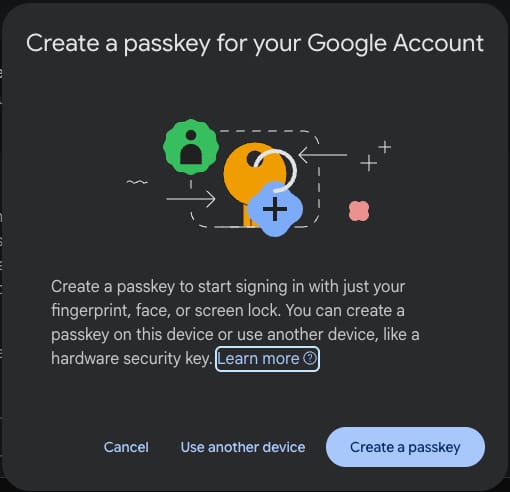
A passkey is a sign-in key saved on your phone, your computer, or in a password manager. You use it by unlocking that device with your fingerprint, face, or PIN. Google asks for it with a prompt like this one:
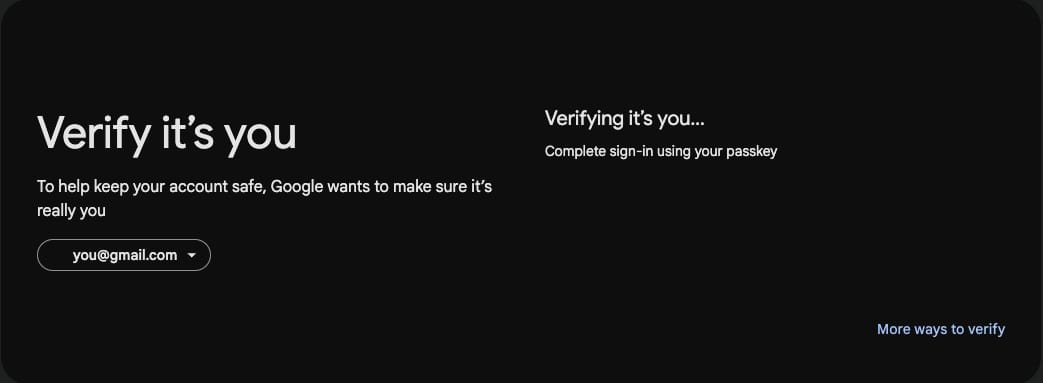
When Google doesn't accept your passkey, it sends you back to this prompt again and again: the passkey loop.
Option 1: Wait or approve your passkey
A new passkey doesn't work right away. Google says a loop right after you create one is expected. The wait to connect a tool can last up to 7 days. Some people see a countdown ("Try again in X days").
The delay gives you time to secure your account if someone else uses it without your permission. To skip it, approve the new passkey with one Google already trusts: an older passkey, or a security key (a small USB key used to sign in).
- Go to myaccount.google.com/security and open Passkeys and security keys.
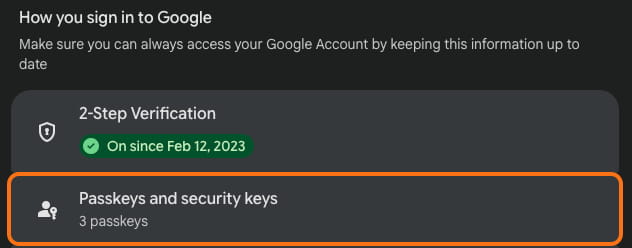
- Select the new passkey and click Approve.
- Confirm with the passkey or security key you already trust.
- Connect Google Ads again (steps at the end of this page).
If you don't see an Approve button, your account has no trusted passkey or security key, so you have to wait. Don't create more passkeys in the meantime: Google can block sensitive actions while a passkey is less than 7 days old.
On some company accounts, Google says a new passkey must be approved with a trusted one before it works. If you can't approve it, ask your IT admin.
In a hurry? Ask a colleague to connect their own Google account in AdKit instead. They need access to the same Google Ads account, a passkey older than a week, and the Admin role in your AdKit workspace.
Option 2: Find your passkey
Your Google account lists every passkey you made, but your browser can only use the ones saved on this device or in a password manager open in this browser. "Passkey not found" usually means the passkey is on another device, or was deleted from this one while still listed on your account.
Check these, in order:
- The right Google account. Open Passkeys and security keys and check the email at the top. With several accounts in one browser, it's easy to pick the wrong one.
- A normal window. In Incognito or Private mode, Google says you may not be able to use passkeys.
- "Skip password when possible" turned on. It's in your Google Account, under Security. Google says that when it's off, Google can ask for another sign-in method instead of your passkey.
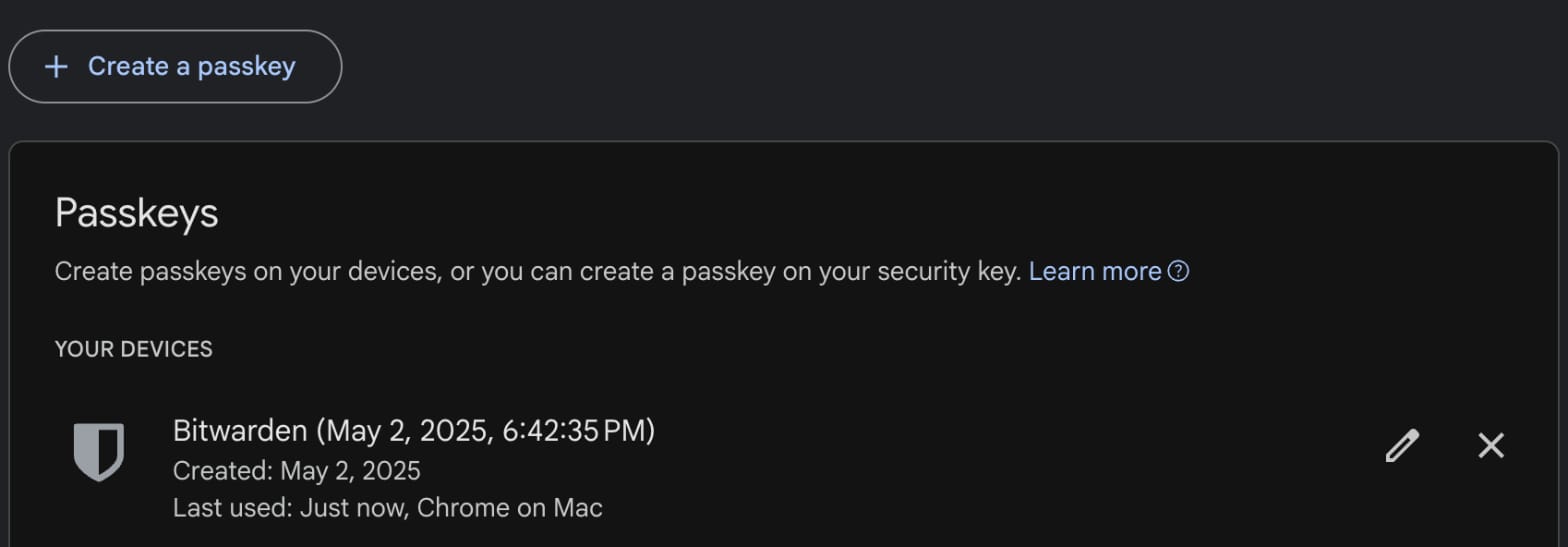
- Where the passkey is saved. The list shows each passkey, where it lives, and when you created it. Here, one passkey is in Bitwarden and two are on security keys.
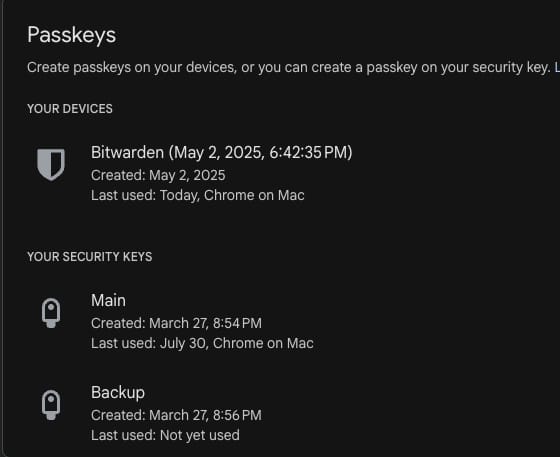
iCloud passkeys work on your Apple devices when Passwords sync is on (System Settings → your name → iCloud → Passwords). Windows Hello passkeys stay on that one PC. Password manager passkeys work wherever the extension is installed and unlocked.
- Your phone. If Google shows a QR code, scan it with the phone that holds the passkey. Google says Bluetooth must be on for both devices, and the phone must be within 1 to 2 meters of the computer. Some company laptops block Bluetooth, and then the QR code can't work.
Then connect Google Ads again.
If the passkey is gone from every device, remove it from the list, create a new one, and go back to Option 1. Lost the device that held your only passkey? Use Google's passkey troubleshooting form.
Option 3: Turn off the login challenge
On a company Google Workspace account, your admin can turn off Google's extra "is it really you?" checks on your account for 10 minutes. Google runs two: the login challenge, when it suspects someone else is signing in, and the verify-it's-you challenge, on sensitive actions like letting an app access your Google data. With the check off, you retry the connection.
It fixed the loop for one AdKit customer whose passkeys were saved in iCloud. Google doesn't list it as a fix for the passkey step, so it may not work for you. It takes the admin a minute to try. We don't expect it to skip a new passkey's wait from Option 1.
Not sure you're on Google Workspace? A @gmail.com address never is. Work addresses usually are, but not always, so ask whoever manages Google accounts at your company.
The admin needs the right to manage users in the Google Admin console (a super admin has it). Being an admin of the Google Ads account isn't enough. They follow Google's steps to turn off login challenges for one user:
- Sign in to the Google Admin console at admin.google.com.
- Go to Directory → Users and select the person who is connecting Google Ads.
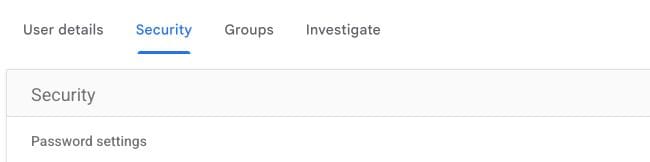
- Open the Security tab on that user's page. Not the Security item in the console's main menu: that one holds settings for the whole company.
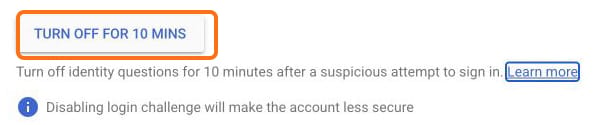
- Click Login challenge, then Turn off for 10 mins. This is the switch that worked for our customer.
- The user connects Google Ads again within the 10 minutes. The change can take a few minutes to apply, so if the first try still loops, wait a few minutes and try again.
Note: For those 10 minutes the account is less protected, as the panel warns. Only do it when the account owner is ready to retry.
If nothing changes, a company setting may be blocking the connection. Ask the admin to check two:
- Hardware security keys only. With "Allow passkeys on hardware security keys only" on, passkeys on phones and computers stop working.
- Third-party apps blocked. If the admin blocks outside apps from company data, no tool can connect, passkey or not.
Option 4: Save a passkey in Bitwarden
A passkey saved in Bitwarden works in browsers where the Bitwarden extension is installed, so you stop depending on one Mac or one PC. Bitwarden's free plan includes passkeys.
Already use another password manager that stores passkeys, like 1Password? Save the passkey there instead.
It's a new passkey, so you wait up to 7 days again unless you approve it (Option 1). Keep your other passkeys. AdKit support suggests this option, but no customer has confirmed it for Google Ads yet.
- Install the Bitwarden browser extension and log in.
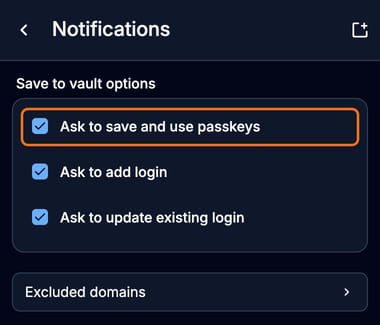
- In the extension, go to Settings → Notifications and check "Ask to save and use passkeys".
- In your Google Account, open Passkeys and security keys, click "Create a passkey", then "Create a passkey" again in Google's dialog.
- In Bitwarden's Save passkey window, save it to your Google login.
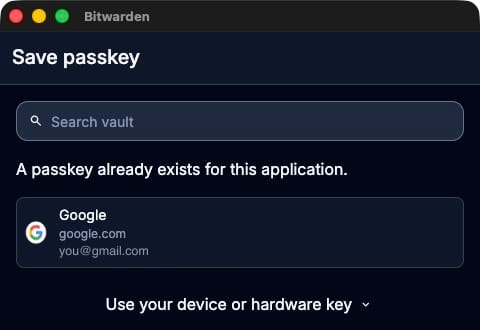
Note: The screenshot shows "A passkey already exists for this application". If you see it too, you already have a passkey in Bitwarden: close the window and use that one. Bitwarden keeps one passkey per login, so saving to the same login would replace it.
- Check your passkeys list: the new passkey shows with Bitwarden's shield icon. Wait or approve it, then connect Google Ads again.
Tip: If your computer's own prompt opens instead of Bitwarden's, check that google.com isn't on Bitwarden's excluded domains list.
Reconnect Google Ads in AdKit
Every option above ends here: connecting Google Ads again is how you retry. You need the Admin role in your AdKit workspace.
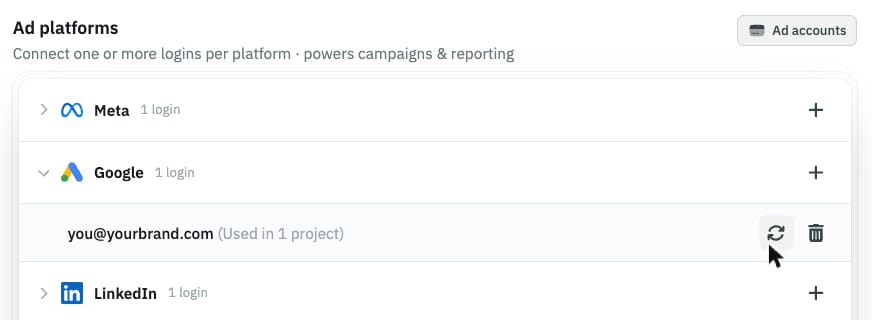
- Open Settings → Integrations. If your Google account is listed with a warning icon, hover over it, click Reconnect login (the circular arrows), and skip to step 3.
- Under Ad platforms, click + (Add login) on the Google row, sign in with your Google account, and allow access. Check that the row now lists that email.
- Open Settings → Ad accounts and drag the Google Ads account from the list on the right onto the project for that brand or client.

If the Google Ads account isn't in the list, that Google account has no access to it: see what to do when an ad account is missing.
Still stuck? Message us from the chat in the AdKit app. Send the exact message Google shows (a screenshot helps), whether it's a Workspace or personal account, and the date you created the passkey. We never need your password or a verification code.
Frequently asked questions
Google only asks for the passkey when you create a connection. Connections made before 5 August 2026 keep working. When you add a Google account to a tool, or reconnect one that stopped working, you sign in to Google again, and Google asks for the passkey.
No. They still sign you in to Google, including through "Try another way", but Google's developer documentation says they can't be used to connect Google Ads to a tool.
Google's Google Ads help page says a new passkey takes 24 to 48 hours to pair with Google Ads, and up to 7 days to be fully active. For connecting a tool, Google's developer documentation also says up to 7 days. If Google shows a countdown, follow it.
No. Google says this banner is a warning and doesn't mean you can't use a passkey. Create one anyway, it works for Google Ads even if the banner stays.
Yes. Google says only Google passkeys are accepted for Google Ads security checks, even if you sign in through a platform like Okta.
Not with passkeys. Google says a passkey is always personal. Give each person their own Google account with access to the ad account, and let each of them connect with their own passkey.
No. An AdKit workspace is your team's space in AdKit. Google Workspace is your company's Google service for work email and accounts, and the admin in Option 3 is the admin of that.