
 Nico Jeannen
TL;DR: To connect Google Ads to Claude, add AdKit from Claude's connector directory, then connect your Google Ads account to AdKit, add it to a project and set what the agent is allowed to do. From then on you can ask Claude about your live account, and it prepares changes for you. If you manage clients, turn off publishing, so every change waits for your approval in AdKit.
Getting answers out of Google Ads is always the same routine: open the account, set the date range, export the data, paste it into Claude. Then again for the next question, and the next client.
Once Google Ads is connected, you just ask Claude. It reads the live account, finds what's wrong and drafts the fixes. Here's how to set it up in 6 steps, plus prompts to start with.
Can Claude connect to Google Ads?
Yes. The options differ in what Claude can change, and how a change reaches your account.
| Option | What Claude can do | How changes reach your account |
|---|---|---|
| No connection: export a report and paste it | Read a copy of your data | You make every change by hand |
| Google's official MCP connector | Read data and create assets. No pausing or budget changes | It can't change your campaigns |
| AdKit | Read and change campaigns | Through AdKit, where you decide what the agent can publish |
Google's own connector is free, but you install and run it yourself: you need a Google Cloud project, your own login setup and a server to run it on. That's a job for a developer, not for most advertisers.
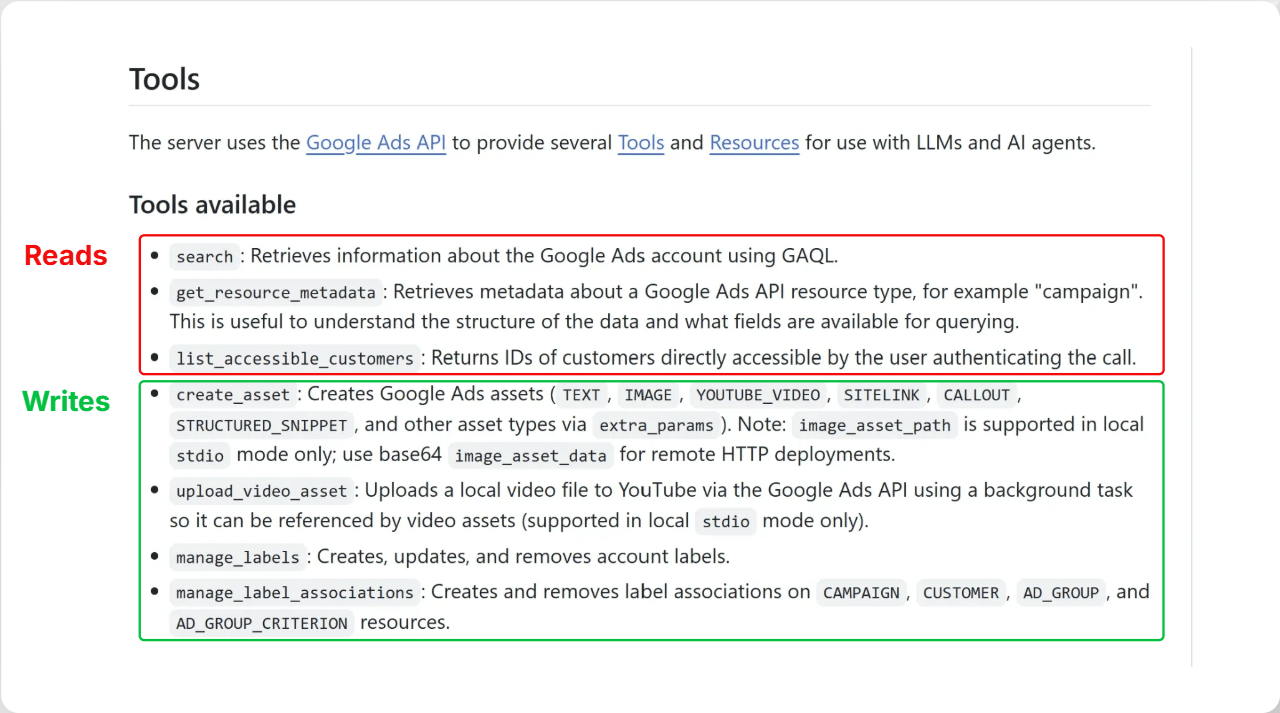
Its GitHub page lists what it can do. Three tools only read your data, like looking up campaigns and their numbers. Four can write, which means making changes, but only to small things like assets. None of them pauses a campaign or changes a budget.
This guide uses AdKit, a third-party tool that lets you connect Claude to Google Ads in a few clicks. It uses the official Google Ads API, so you don't need your own Cloud project or server.
What you need before you start
- An AI assistant. We use Claude in this example. You can use ChatGPT too.
- An AdKit account. Create one here.
- Google Ads access that allows changes. Read-only is enough for Claude to read your data, but to prepare changes you need Standard or Admin access.
How to connect Google Ads to Claude
Step 1: Connect Claude to Google Ads
Go to the AdKit page in Claude's connector directory and add it (if you're signed out of Claude, the button reads Sign in to add). Approve the connection when Claude asks, then sign in to AdKit.
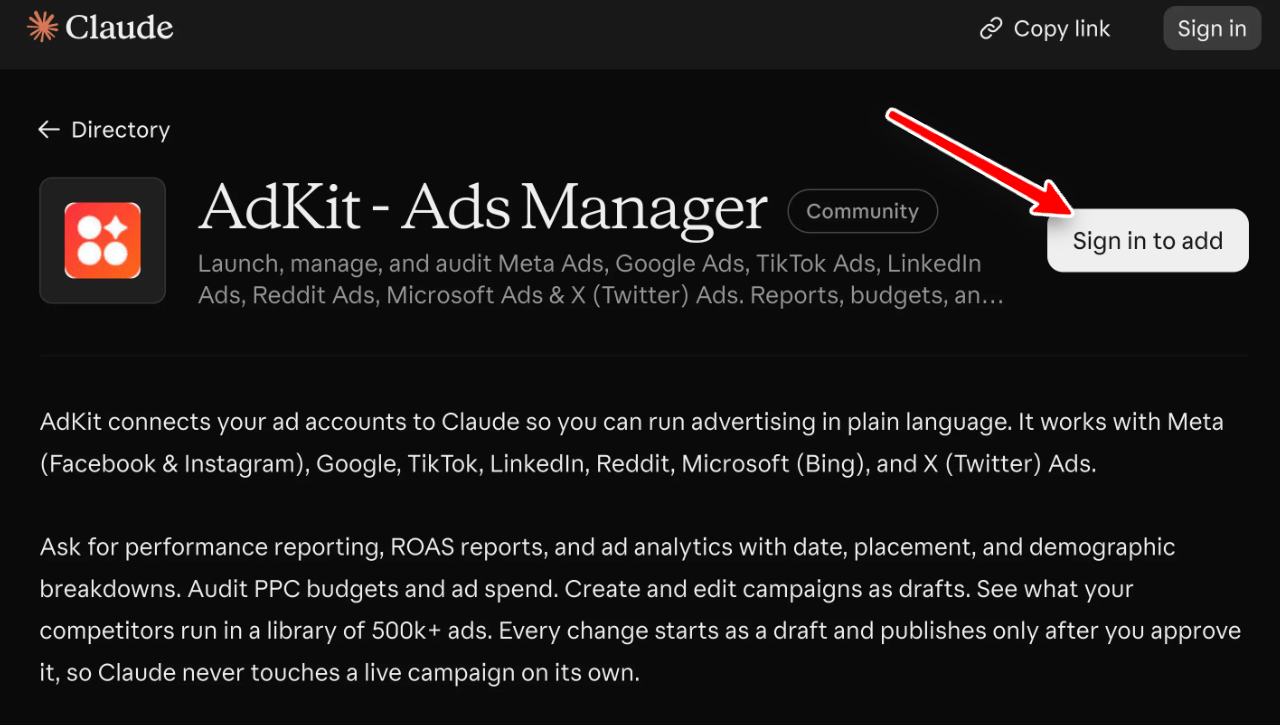
AdKit now appears among your Claude connectors. Claude can't see your campaigns yet: that's the next step.
Step 2: Connect Google Ads to AdKit
This lets AdKit read your Google Ads account and make changes on Claude's behalf.
- In AdKit, open Settings, then Integrations.
- Click + next to Google.
- Log in with Google and approve the access.
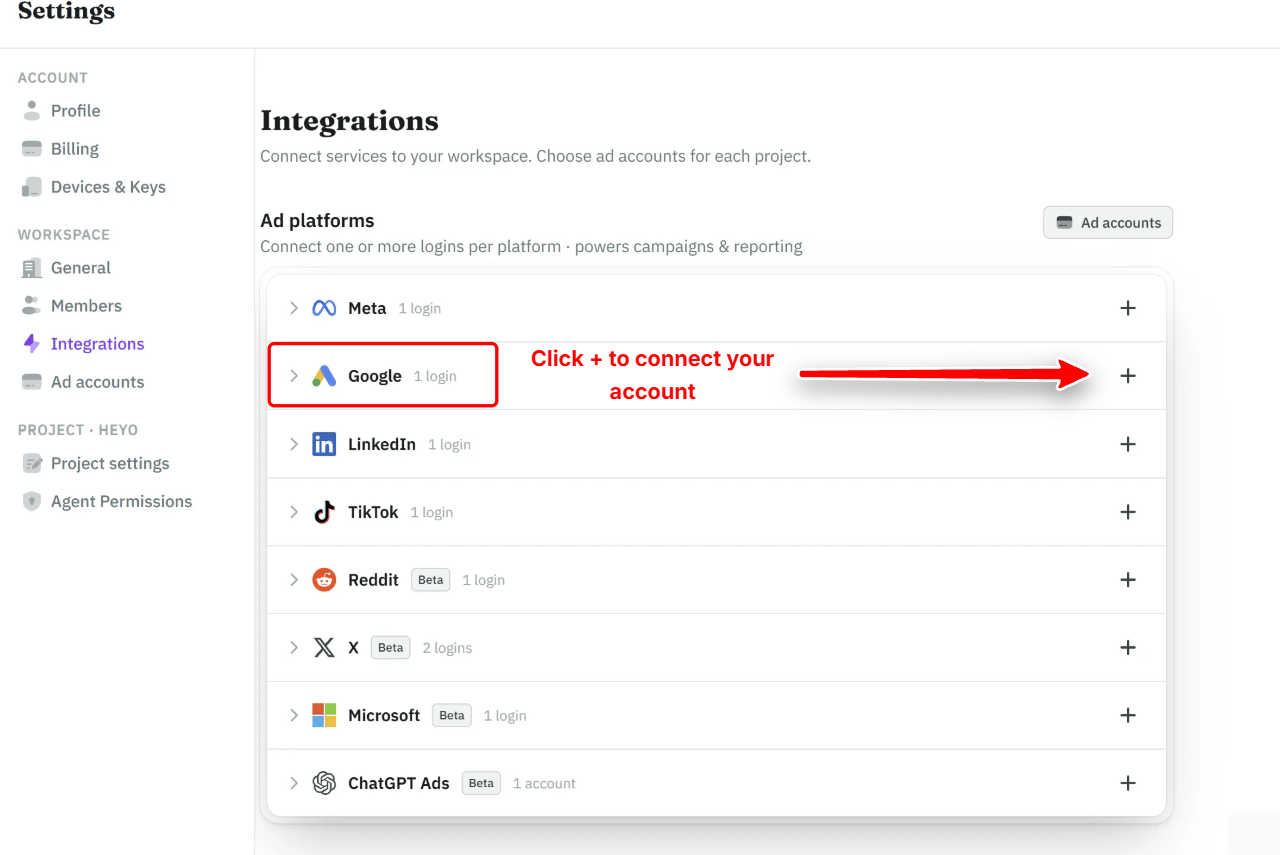
Then put the account in a project. A new project starts empty, so:
- Open Settings, then Ad accounts. If you don't have a project yet, click New project.
- Find your Google Ads account in the list on the right and drop it into the project.
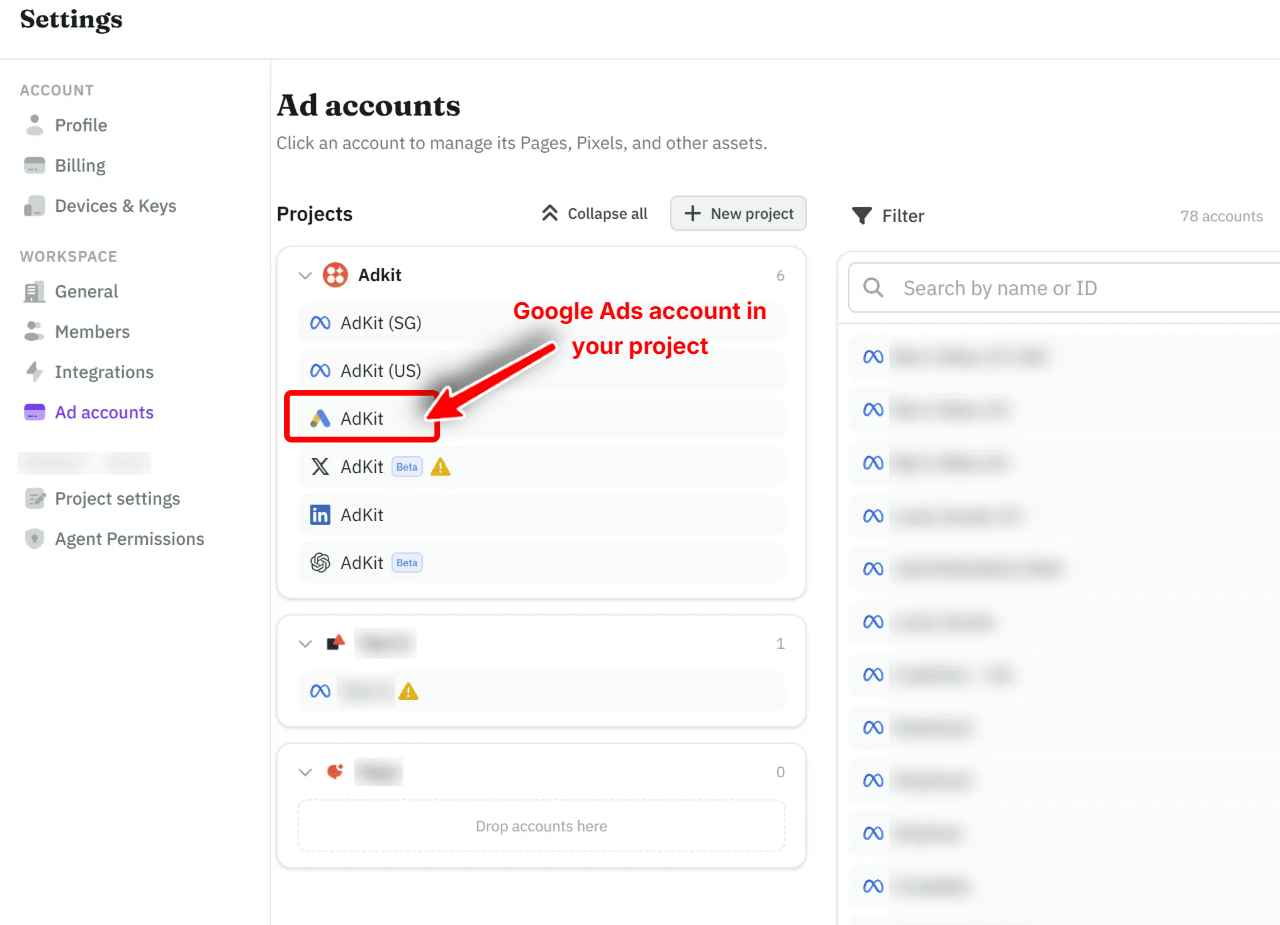
Step 3: Configure agent permissions
You control what Claude can do in your Google Ads account. Out of the box, the agent can read, edit and publish, but nothing is sent straight to Google Ads: each change is prepared in AdKit first, and you can review it there before it goes live.
- Open Settings, then Agent Permissions (under your project).
- Under the access settings, click Change access.
- Select Draft only.
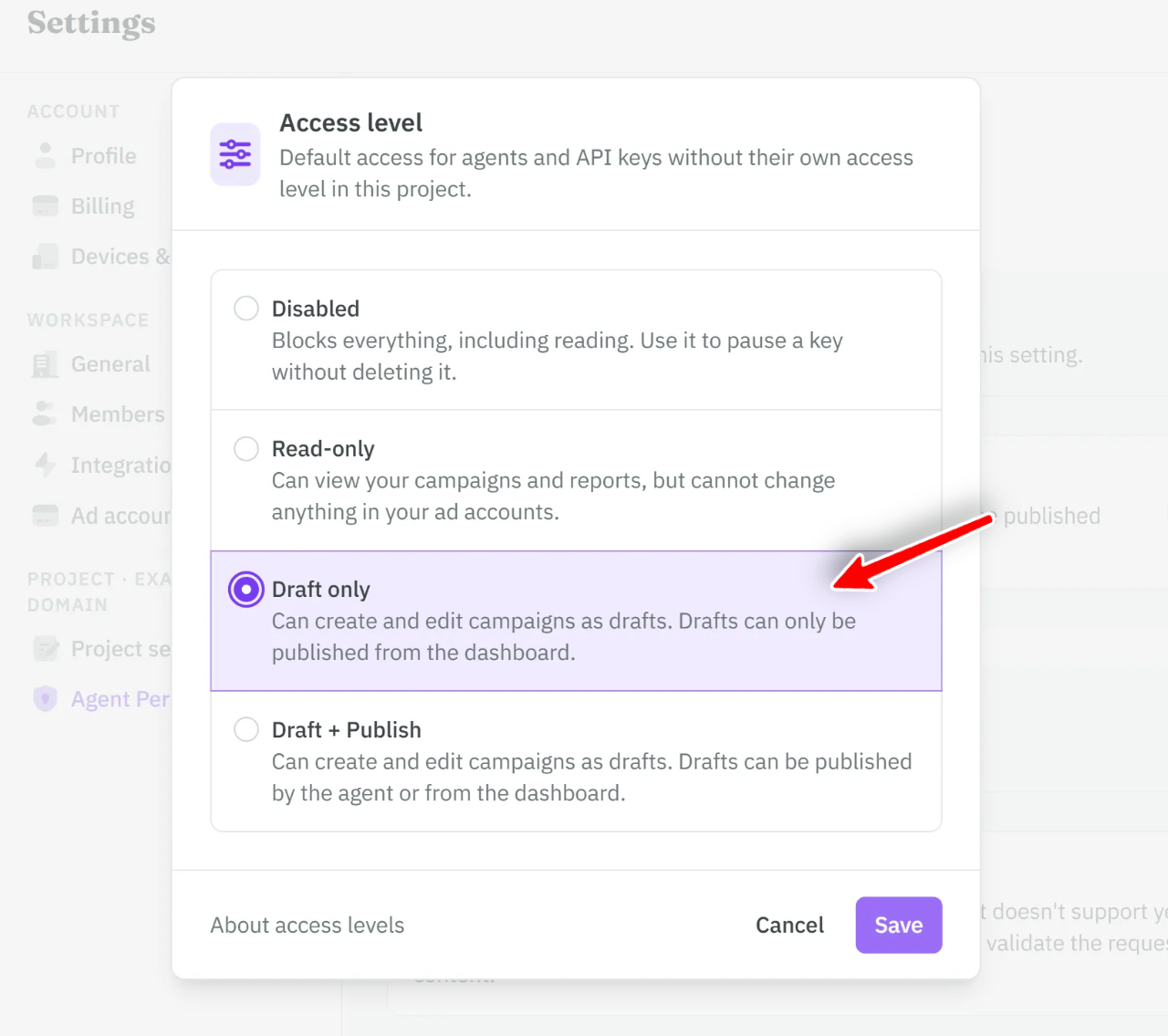
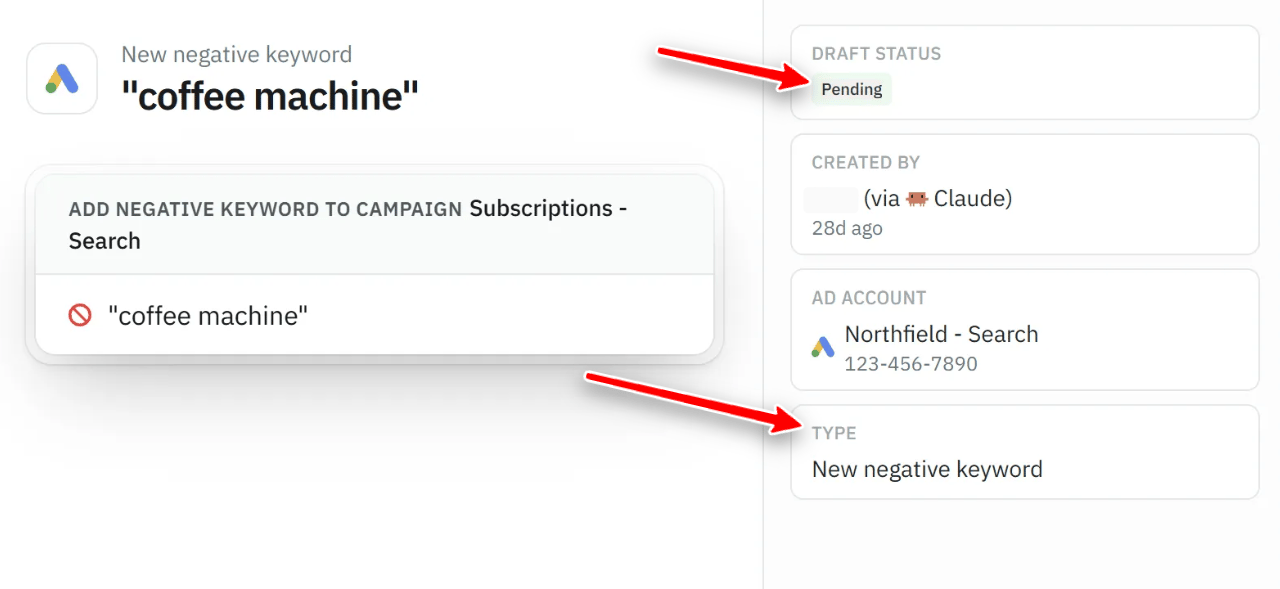
Claude can still prepare changes, and you publish or discard each one in Draft Approval. Working in a team? Each member can get different permissions.
Step 4: Check the connection
Open a new chat and paste:
List all my AdKit projects and the Google Ads accounts connected to them.
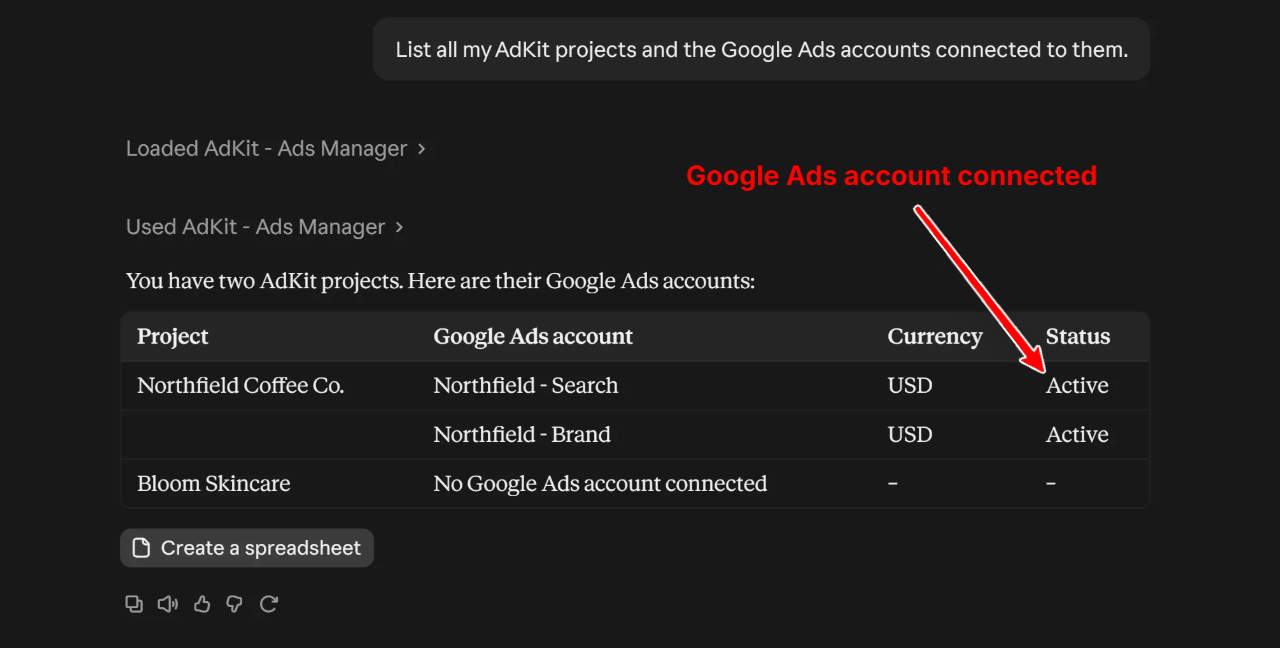
If your Google Ads account shows up, Claude is connected.
Step 5: Get your first report
On Google Ads, one of the most useful things to ask for is a look at your search terms. A keyword is what you bid on. A search term is what people actually typed when your ad showed, and the two don't always match: if you bid on "coffee beans", your ad can also show for "coffee machine".
Give me a short report on each campaign for the last 7 days: spend, clicks, conversions and cost per conversion. Then list the search terms that cost money without bringing any conversions.
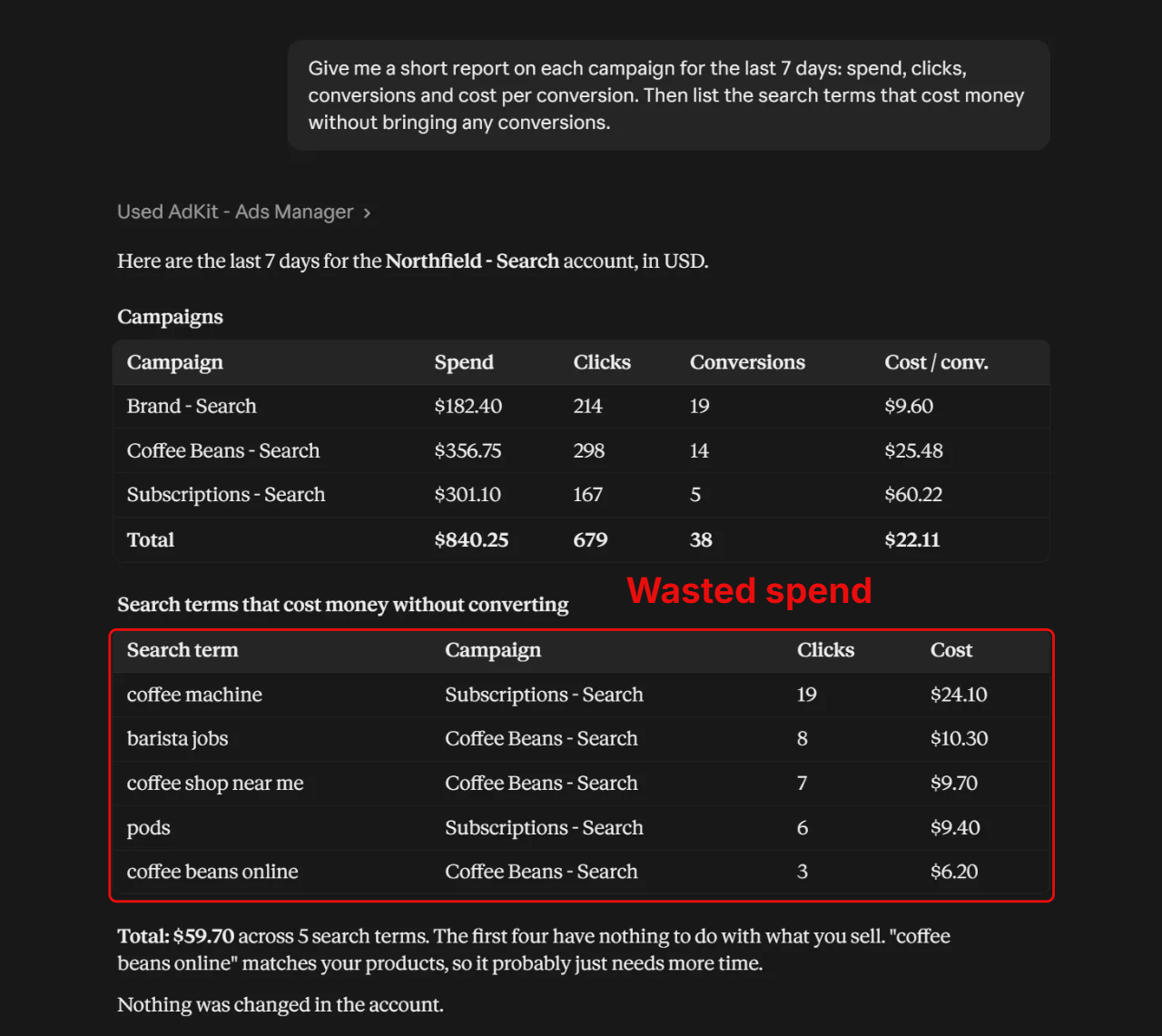
You get the numbers per campaign, and a list of searches where your budget is leaking. Nothing changes in your account.
Step 6: Draft your first change
Now let Claude fix the leak. Ask it to block the searches that have nothing to do with what you sell:
Add the search terms that have nothing to do with what I sell as negative keywords.
Claude only picks the irrelevant ones, like "coffee machine" when you sell beans. A keyword you bid on that hasn't converted yet is a different call: pause it or lower the bid instead.
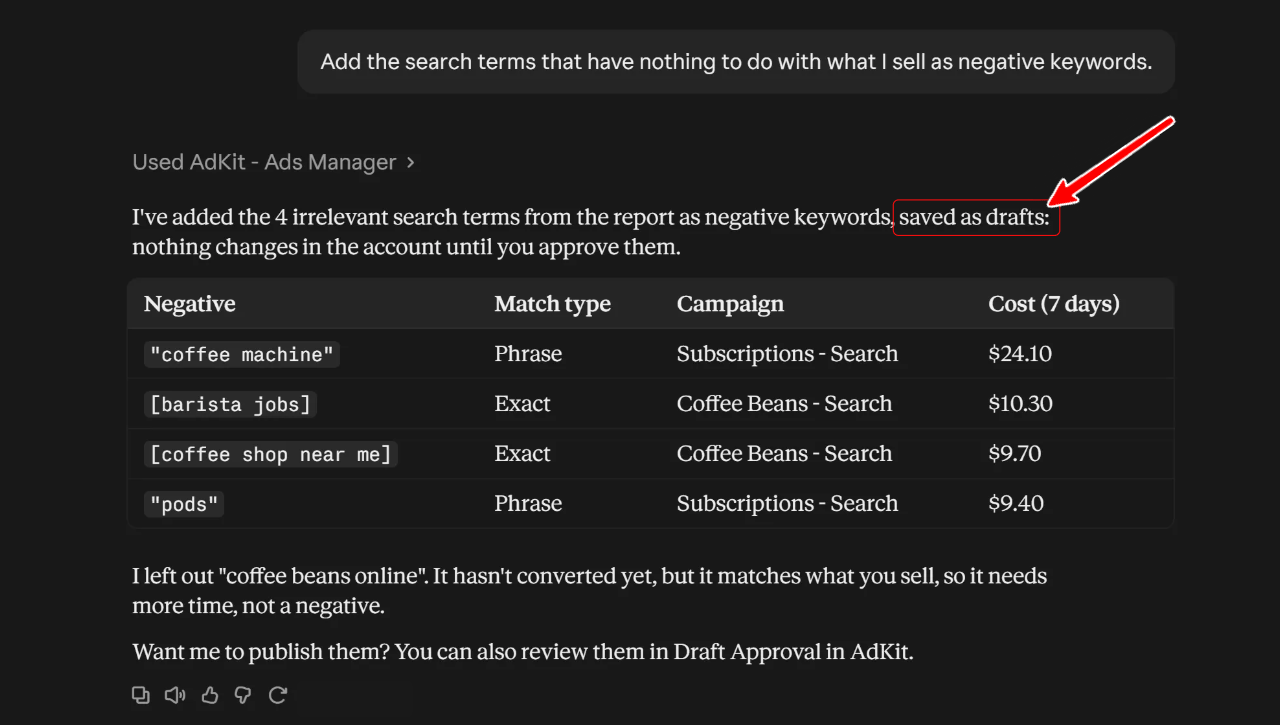
The negatives wait in Draft Approval in AdKit until you publish them.
What else Claude can do with Google Ads
Here are more prompts to copy into a new chat. Check the first answers against your account until you trust them.
Account audit
Audit my Google Ads account for the last 30 days. Show the campaigns with the highest cost per conversion and tell me what to look at first.
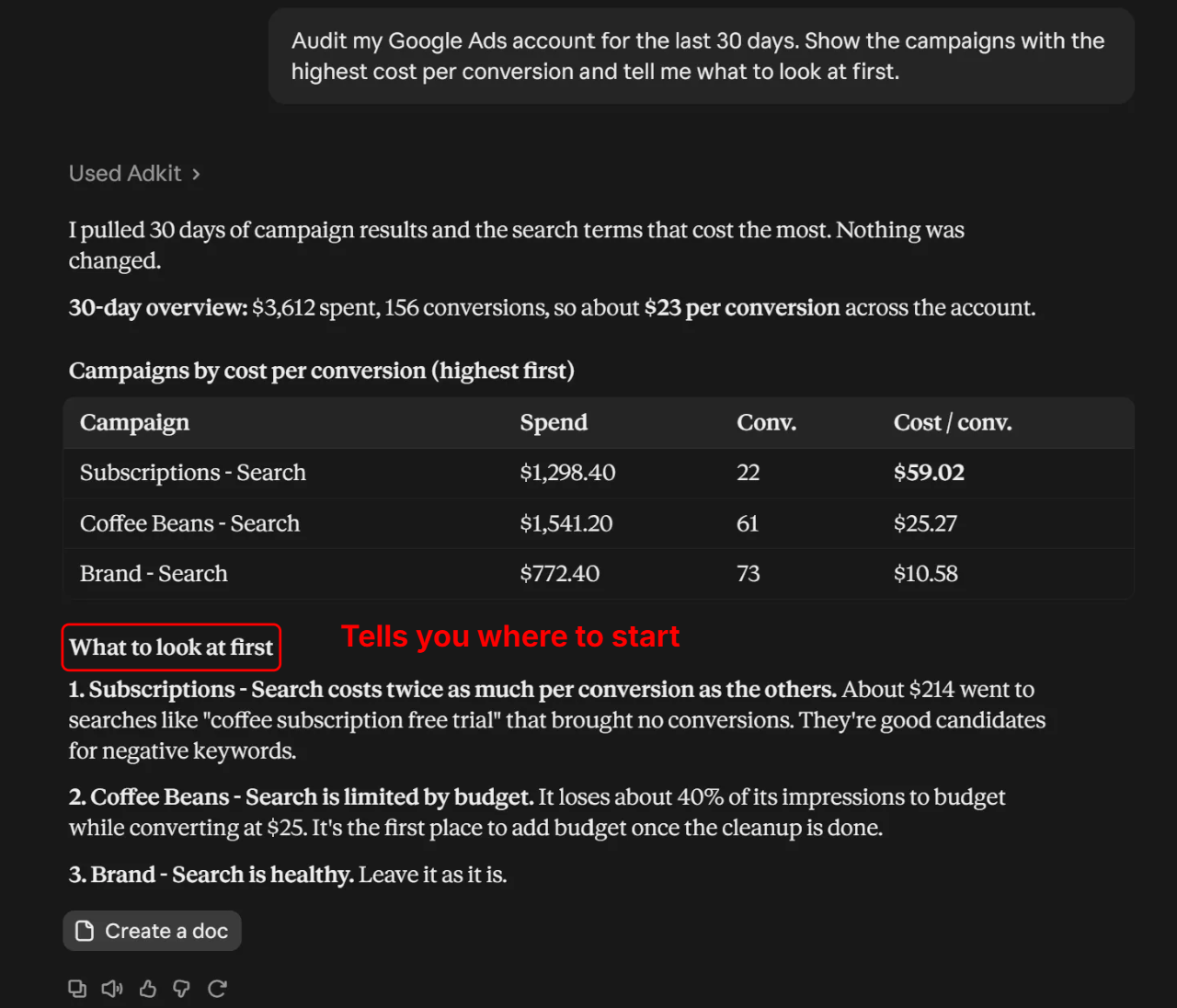
You get a ranked list with the numbers behind each problem.
Budget pacing
Compare this month's spend with each campaign's daily budget. Which ones will overspend or underspend?
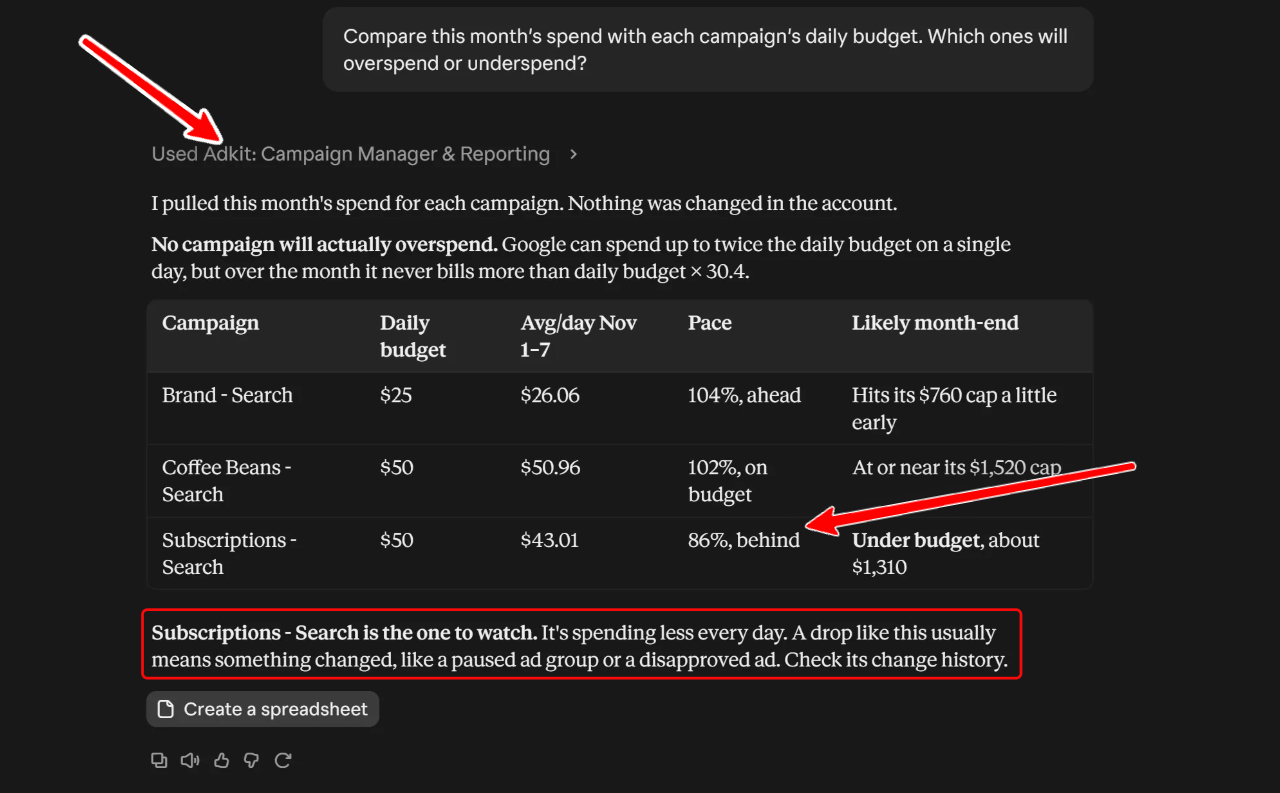
You get each campaign's pace and where it's likely to end the month.
Month over month
Compare this month with last month: spend, conversions and cost per conversion for each campaign. Flag anything that changed by more than 20%.
Ads to fix
List the ads that are disapproved or limited, and tell me why.
New ad copy
Write 5 new headlines for my best campaign, based on the search terms that convert the most.
Is it safe to connect Google Ads to Claude?
It depends on how you connect it. Google suspends accounts for policy violations, billing problems and unauthorized account activity.
What can get you in trouble is how a tool connects and what it publishes:
- A tool that logs in with your password. A login from someone else's server can look like someone breaking into your account. AdKit never asks for your password: you sign in on Google's own page and approve the access.
- Ads that break Google's rules. If Claude writes an ad with a claim your product can't keep, the account is at risk because of the ad, not the tool. That's why you review changes before they go live.
Troubleshooting
Check that the ad account is inside a project (Step 2). Then name the project in your prompt: Claude works on one project at a time.
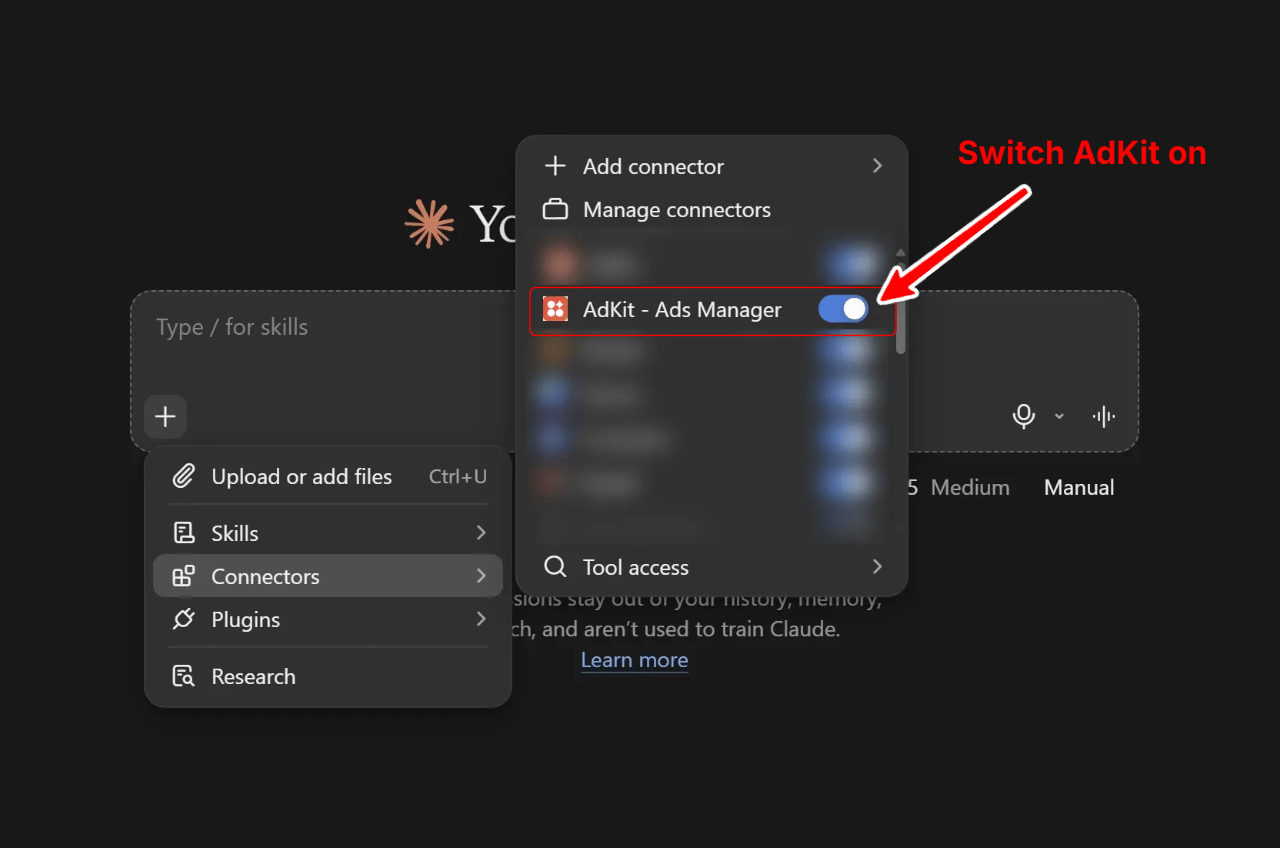
In a new chat, click +, then Connectors, and make sure AdKit - Ads Manager is switched on.
Check two things. In Google Ads, your access level must be Standard or Admin (see What you need). In AdKit, your role in the workspace must let you work on campaigns: if it doesn't, ask the workspace admin.
Final thoughts
Start with one client and publishing turned off. Run the report from Step 5 first, then let Claude draft its first change. Connect your first account and you can manage it from Claude today.
Frequently asked questions
Claude has a free plan, and Google's own connector is free but technical to set up. AdKit has a free trial, so you can test the whole setup before paying.
Yes, through AdKit. Claude prepares the campaign in AdKit, and with Draft only on, it goes live only when you publish it.
Yes. Connect both in AdKit and add each one to a project. If they belong to different clients, give each client its own project.
Yes, if the tool connects through the official Google Ads API and never asks for your password. With AdKit, every change goes through AdKit first, and you decide what Claude can publish.