
Use your own Google Ads API access
If you're reading this, you probably hit a "rate limit" error in AdKit. Sorry about that. Google caps how many requests our API access can make per day, and we've asked them for a much higher limit. Their approval can take a while, and we'd rather not make you wait.
Until it lands, here's how to fix it on your side today: plug in your own Google Ads API access. It takes about 15 minutes of clicking through Google's consoles, there's nothing to wait for, and from then on your AdKit usage runs on your own quota.
And if you get stuck anywhere in this guide, message me on the live chat. I'll walk you through it, or we can hop on a quick call and do the setup together.
You'll collect four codes from Google and paste them into AdKit:
- A developer token: your personal Google Ads API key
- A Client ID and Client secret: your own "app" registered with Google
- A refresh token: proof that your Google account gave that app permission
Two things you need before starting: your Google Ads accounts already connected to AdKit (if you've been using AdKit, they are), and a Google account with access to those ad accounts (the one you use to manage them is perfect).
Step 1: Get your developer token
The developer token lives in a Google Ads manager account (also called an MCC). If you already have one, skip to the second paragraph.
No manager account yet? Create one free at ads.google.com/home/tools/manager-accounts. It's instant, and it doesn't change anything about your existing ad accounts.
In your manager account, go to Tools & settings → Setup → API Center. Accept the terms, and your developer token appears right there. Copy it somewhere safe.
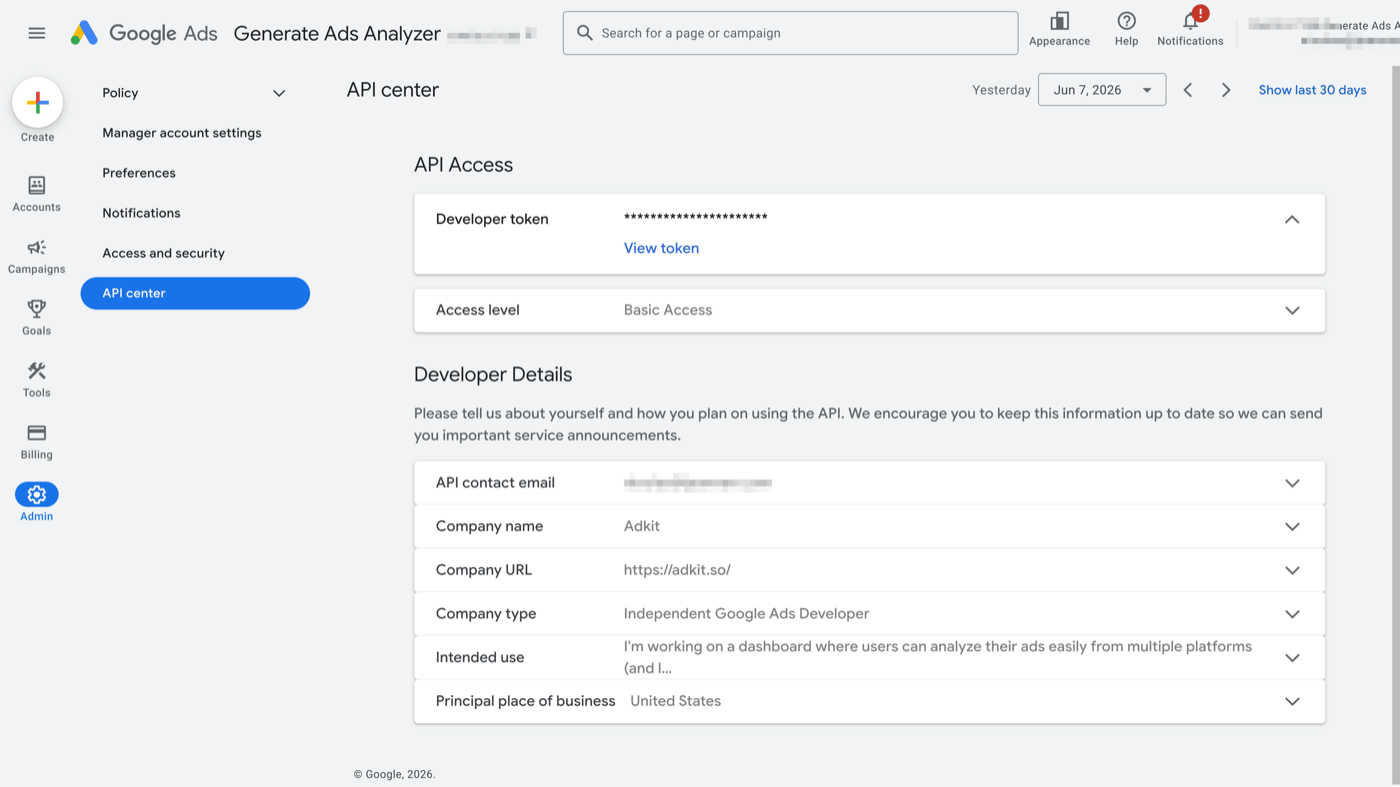
Google activates new tokens immediately with "Explorer" access, which is enough for AdKit to work on your real accounts today. One limit: keyword idea tools stay locked until you also apply for Basic access, a short form in the same API Center page, usually approved in about a week. Submit it now and forget about it; everything else works in the meantime.
Step 2: Create your app in Google Cloud
Google only accepts API requests that come from a registered "app". You'll register your own. It's free, and it's just clicking through forms at console.cloud.google.com.
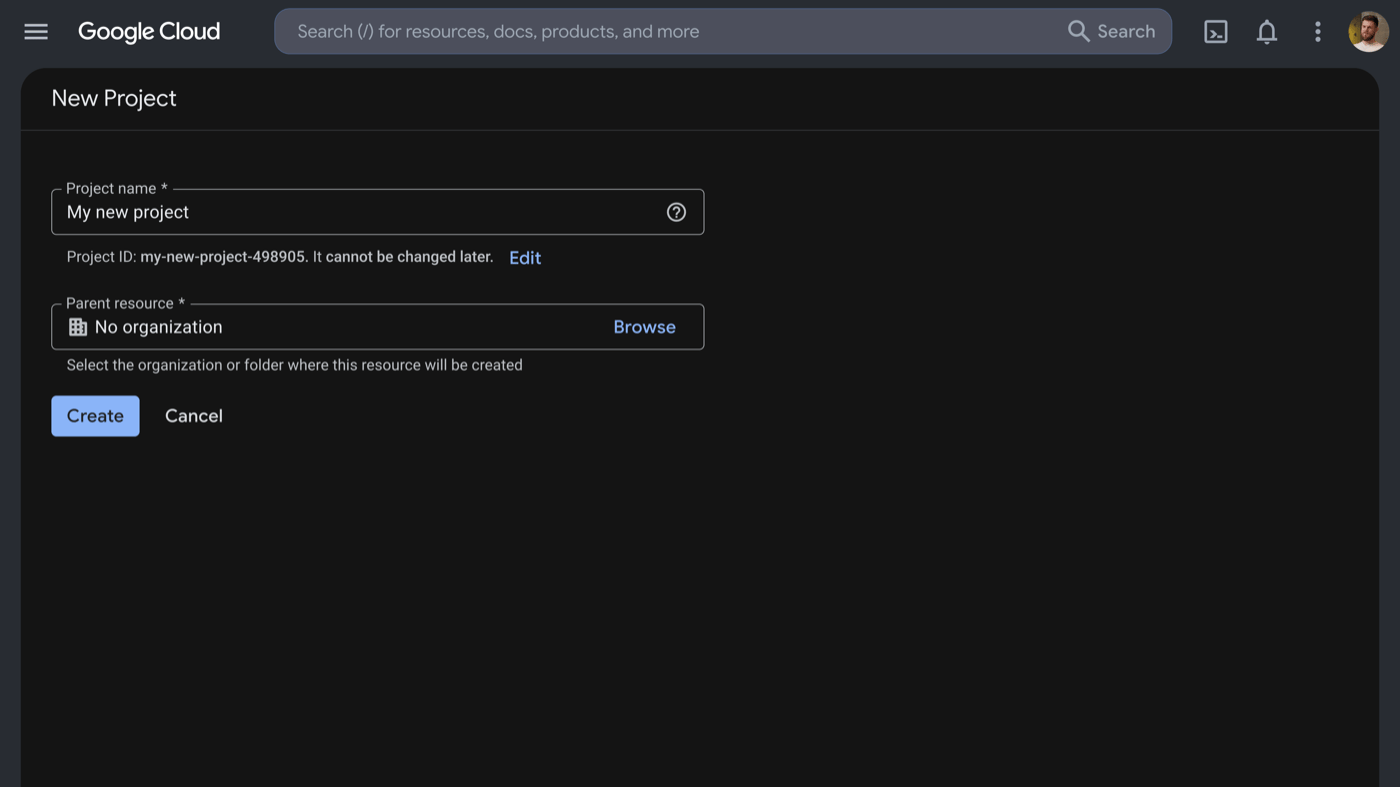
- Create a project: click the project picker at the top, then New project. Name it anything ("AdKit Access" works).
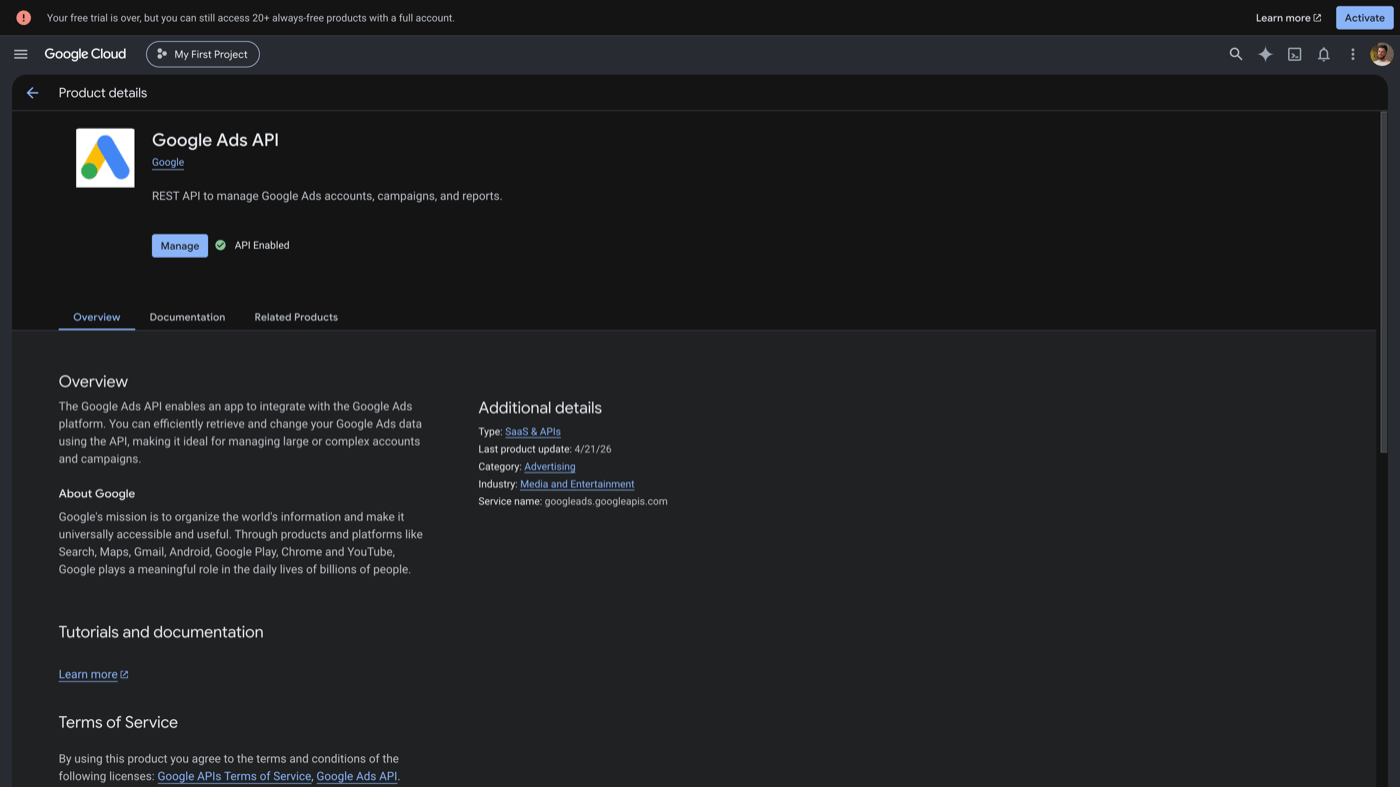
- Enable the API: search "Google Ads API" in the top search bar, open it, click Enable.
- Set up the consent screen: search "OAuth consent screen". Pick External, fill in an app name and your email, and save through the remaining steps. Defaults are fine.
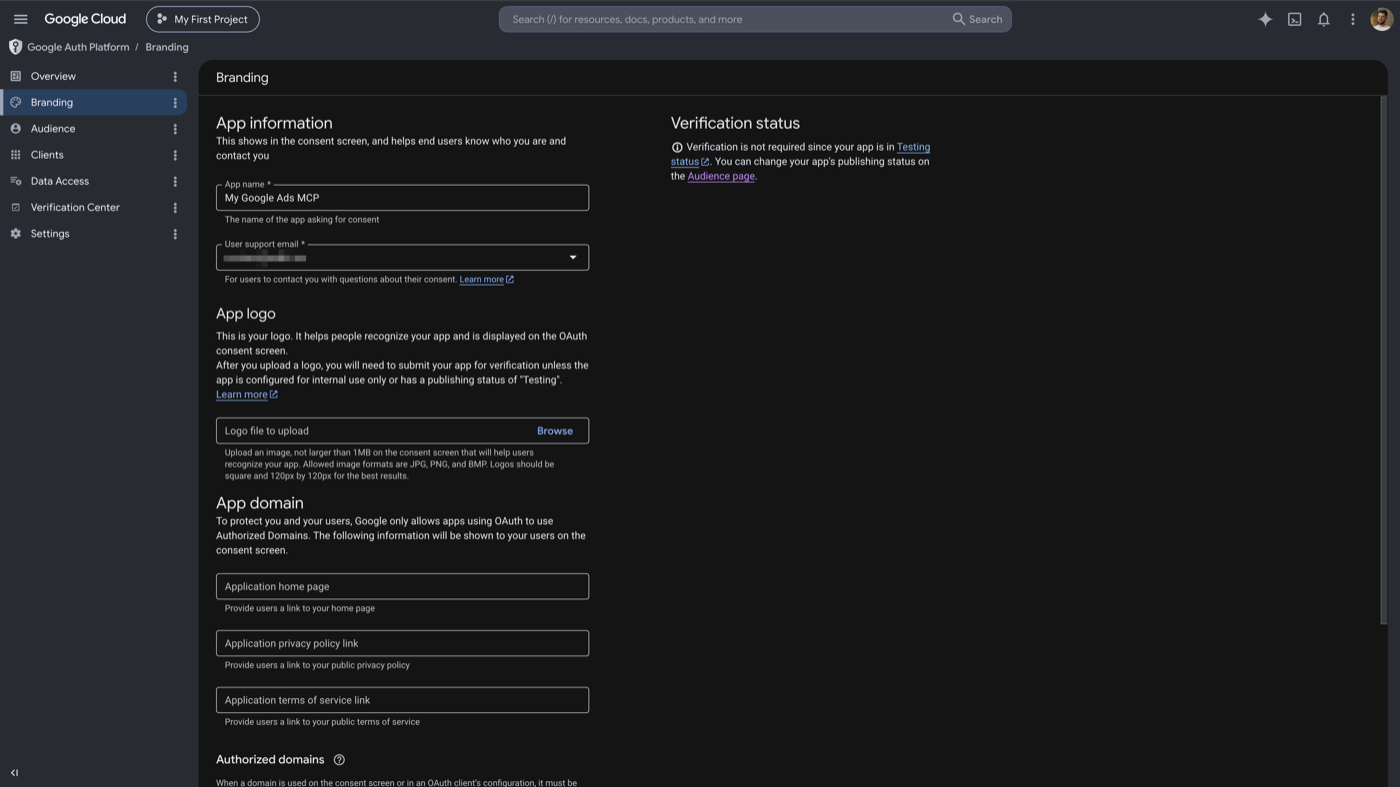
- Publish the app: on the consent screen page, click Publish app so the status says In production (the screenshot above still shows "Testing", that's the status you're changing). Don't skip this: if the app stays in "Testing", Google kills your connection after 7 days and AdKit will stop working until you redo step 3 of this guide.
- Create the credentials: search "Credentials", click Create credentials → OAuth client ID. Application type: Web application. Under Authorized redirect URIs, add exactly this address:
https://developers.google.com/oauthplayground - Google shows you a Client ID and Client secret. Copy both.
Step 3: Get your refresh token
Now you log in through your own app once, and Google hands you the refresh token. You'll use Google's OAuth Playground, a free tool made for exactly this.
- Open developers.google.com/oauthplayground.
- Click the gear icon (top right), tick Use your own OAuth credentials, and paste your Client ID and Client secret.
- In the box on the left that says "Input your own scopes", paste:
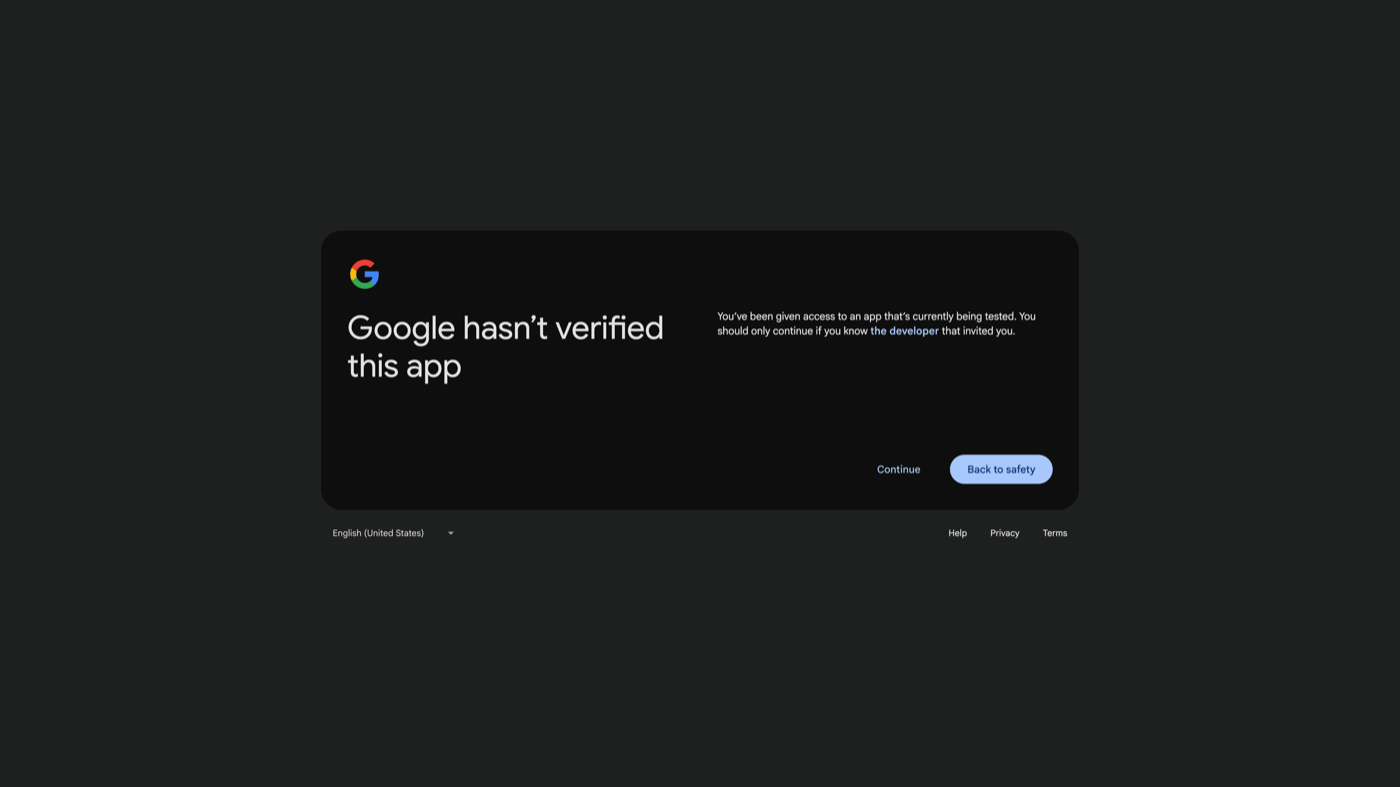
https://www.googleapis.com/auth/adwordsand click Authorize APIs. - Sign in with the Google account that has access to your ad accounts. Google will warn that it "hasn't verified this app". That's expected, the app is yours from Step 2. Click Advanced, then Go to your app name, and allow access.
- Back in the Playground, click Exchange authorization code for tokens. Copy the Refresh token it shows you.
Step 4: Paste everything into AdKit
Open your Google Ads API access page (you can also reach it from the link we sent you). Paste the four codes (Client ID, Client secret, Developer token, Refresh token) and hit Save.
AdKit immediately makes a test call to Google with your codes. If something's off, you'll get an error telling you which code to double-check. If it saves, you're done: every project in your workspace now runs on your own quota, including projects you add later.
If something goes wrong
- "Check your Client ID, Client secret, or refresh token": one of the three OAuth codes doesn't match. The most common cause: the refresh token was created with a different Client ID than the one you pasted. Redo Step 3 using the exact credentials from Step 2.
- "Check your developer token": the token is mistyped, or it's still at test-only level. Open the API Center (Step 1) and confirm the token shows Explorer or Basic access.
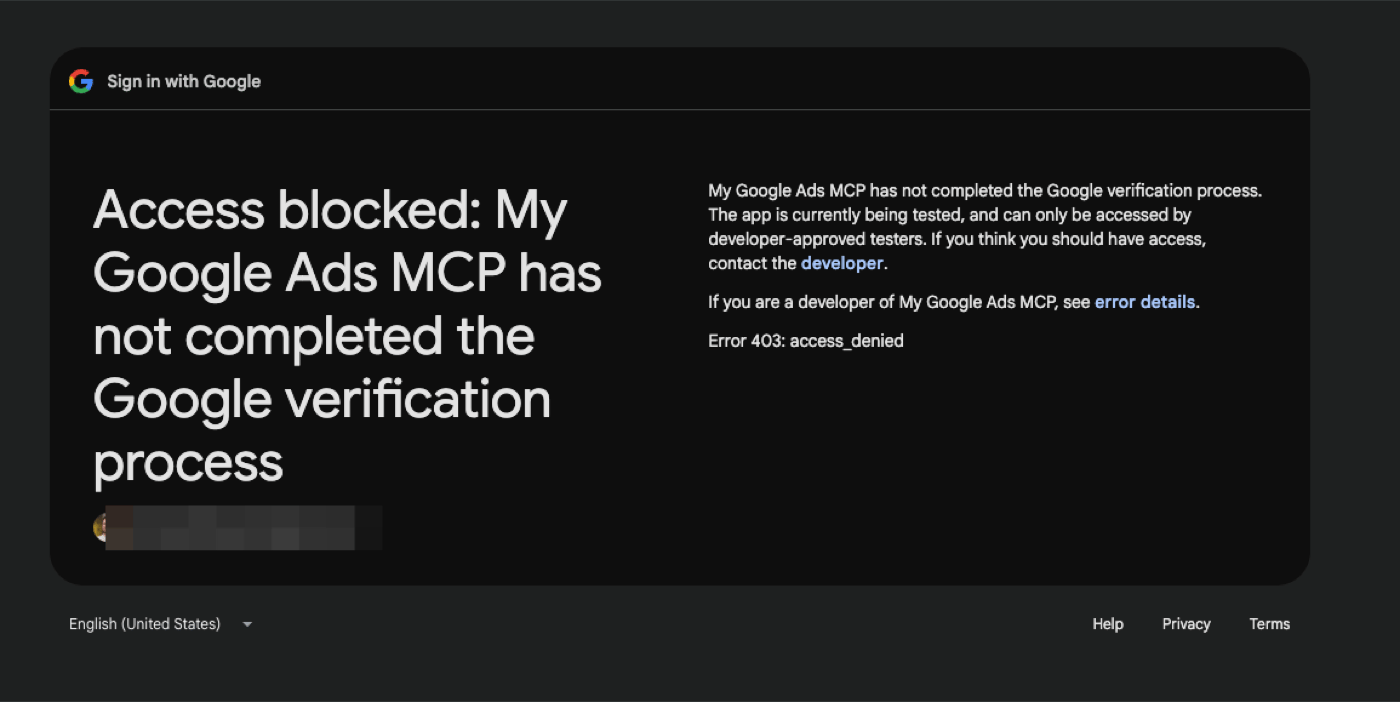
- AdKit stopped working after a week, or Google blocks the sign-in with a "403 access_denied, app is being tested" screen: your app is still in "Testing". Publish it (Step 2.4), then redo Step 3 and paste the new refresh token.
- Keyword tools return errors: Explorer access doesn't include keyword ideas. Apply for Basic access in the API Center (Step 1). Everything else keeps working while you wait.
Want to go back to the shared access? Hit Remove in the same page. Your ad account connections stay untouched either way.
Still stuck? Ping me on the live chat and I'll sort it out with you.